Keep applicants for later vacancies in the Talent Pool
The Talent Pool keeps good applicants your organisation wants to remember, without tying them to a vacancy. When a vacancy closes or isn't right for someone, move their Application into the pool. Later, find them there, email them, and move them onto a new vacancy. Anyone who can see Applications can open the Talent Pool; moving Applications in and out needs the User role or above.
Who can go into the pool
Only applicants who have agreed to be considered for other roles. On the Application, that is the Applicant agrees to be transferred box in the Summary panel. Applications without it ticked stay where they are when you try to move them.
With early access, people can also join the pool themselves through your Talent Pool form. See Let people join your Talent Pool with a form (early access).
Move Applications into the pool
From a list:
- Go to Applications → Live or Applications → Archived.
- Tick the Applications.
- Open With selected... and select Move to Talent Pool.
- The Move to Talent Pool window says how many will move, for example "Move 3 applications to the Talent Pool? They leave their vacancies." It also says how many applicants haven't agreed to other roles, and that those Applications stay where they are.
- Select Move to Talent Pool.
enrola confirms, for example "Moved 3 applications to the Talent Pool. 1 stayed where it was: the applicant hasn't agreed to be considered for other roles."
From one Application, select Move to Talent Pool at the top of the record. It shows on live and archived Applications.
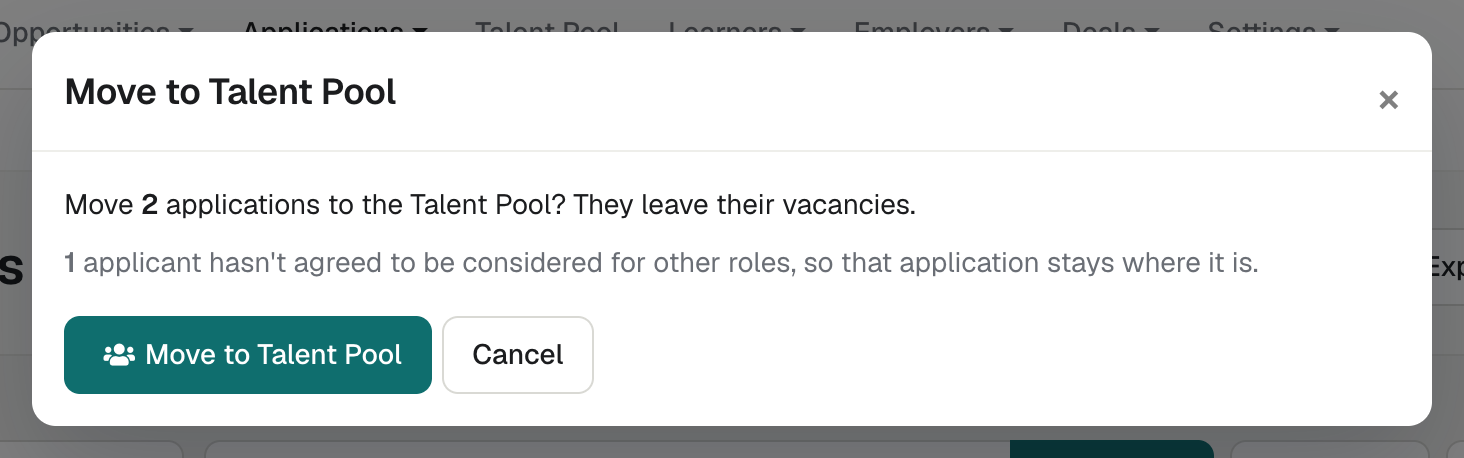
What moving into the pool changes
- The Application leaves its vacancy, as archiving does. It no longer counts among that vacancy's applicants.
- It keeps its answers, comments, notes, labels, Supervisor and history. Its last status is kept as history; the pool has no statuses of its own.
- Application Logs records "Moved to the Talent Pool from" the vacancy, or "from Archived applications".
- Nothing is sent to the applicant when you move them in from a list or an Application. When a vacancy is closed, the vacancy closed email can go to them. See Close a vacancy now, and reopen it.
Use the Talent Pool list
Select Talent Pool in the header, between Applications and Learners. The list starts with the people who went in most recently.
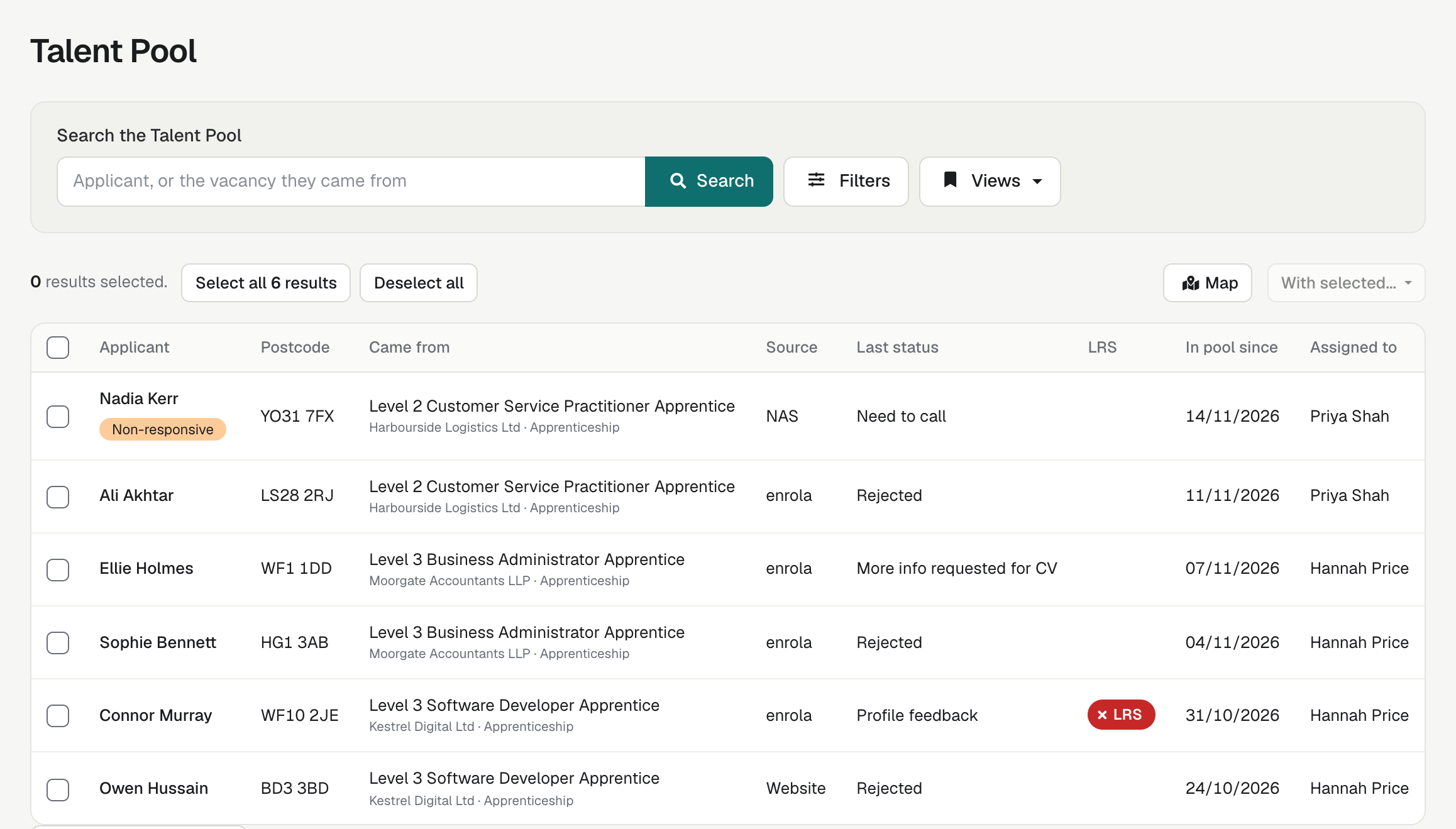
| Column | Shows |
|---|---|
| Applicant | The applicant and their labels. Select the name to open the Application. |
| Postcode | The applicant's postcode. |
| Came from | The vacancy they left, with its Employer and Opportunity type underneath, or "Joined directly" for someone who joined through your Talent Pool form. |
| Source | Where their Application came from, such as your enrola job board, Website or Indeed, Import for an Application added from a CSV file, or Talent Pool form for someone who joined through your Talent Pool form. Empty when enrola doesn't know. |
| Last status | Their status on that vacancy when they went in. |
| LRS | The Learning Records Service (LRS) result, as on the Applications list. See What do the coloured LRS labels mean? |
| In pool since | The date they went in. |
| Assigned to | The Application's Supervisor. |
You can sort by Applicant, Came from, Source and In pool since.
To find people:
- Search the Talent Pool finds an applicant, or the vacancy they came from.
- Filters offers the same filters as Applications → Live, with these differences:
- Status is the status they had when they went into the pool, and Travel time is to the vacancy they came from. Each says so under its name.
- Came from vacancy, Came from employer, Came from opportunity type, Came from sector and Came from NAS standard find people by the vacancy they left. Sector and NAS standard list only the ones your own vacancies use.
- In pool since offers Today, Yesterday, In the last 7 days or Between dates.
- Can be moved finds the applicants who agreed to be considered for other vacancies, so Move to a vacancy won't skip them.
- Email not arriving finds applicants whose emails aren't being delivered. See Why does a record say emails aren't arriving?
- The Source filter finds people by where their Application came from. It lists the sources your organisation could get Applications from, and any your Applications already have.
- Filters about a current vacancy, such as Vacancy or Employer, aren't offered, because pool entries have none. See Search a list and use the filter bar.
- Map shows the pool on a map, where you can draw an area. See See Applications on a map and filter by area.
- You can save a view of the pool, as on the other lists. See Save a view of a list and share it with your team.
Admins choose which filters the Talent Pool offers in the Talent Pool section of Settings → Search filters. It says "Uses your Applications settings until you change something here." Once an Admin changes it and saves, the two lists have their own settings.
Look people up in the LRS
You need the User role or above, and your organisation must be connected to the LRS.
- Add the LRS status filter. Choose No status, No response or No match to look people up, or Potential match to accept matches you have checked.
- Tick the people.
- Open With selected... and select LRS lookup or Accept LRS. Until the list is filtered this way, they are greyed out and say which filter they need.
- The window says how many people it will act on, and how many it leaves out and why, for example "1 person can't be looked up: LRS needs a gender to look someone up". Select LRS lookup or Accept LRS.
enrola goes back to the pool and says what it did, for example "Started 2 LRS lookups. Couldn't look up 1 person: LRS needs a gender to look someone up." The results show in the LRS column once the LRS has answered. To look up one person, use LRS lookup in their Qualifications panel. See Look up applicants in the LRS again after a failed lookup.
An Application in the pool
The record's breadcrumb starts with Talent Pool, and a banner says which vacancy it came from, for example "In the Talent Pool since 26/10/2026, from Team Leader Level 3 at Kestrel Logistics. Last status: Interview." For someone who joined through your Talent Pool form, it says, for example, "In the Talent Pool since 16/11/2026. Joined through the Talent Pool form."
The top of the record has Move to a vacancy and Archive. The buttons that need a vacancy, such as Profile, Export PDF, Request more info and Create Learner record, aren't shown. The Book Interview panel says "Interviews are booked on a vacancy. This application isn't on one." You can still edit the applicant's details, labels and notes, and write comments. The Summary panel's Source line still says where the Application first came from.
Take someone out of the pool
Move them onto a live vacancy
- In the Talent Pool list, tick the people and open With selected... → Move to a vacancy…. For one person, open their Application and select Move to a vacancy.
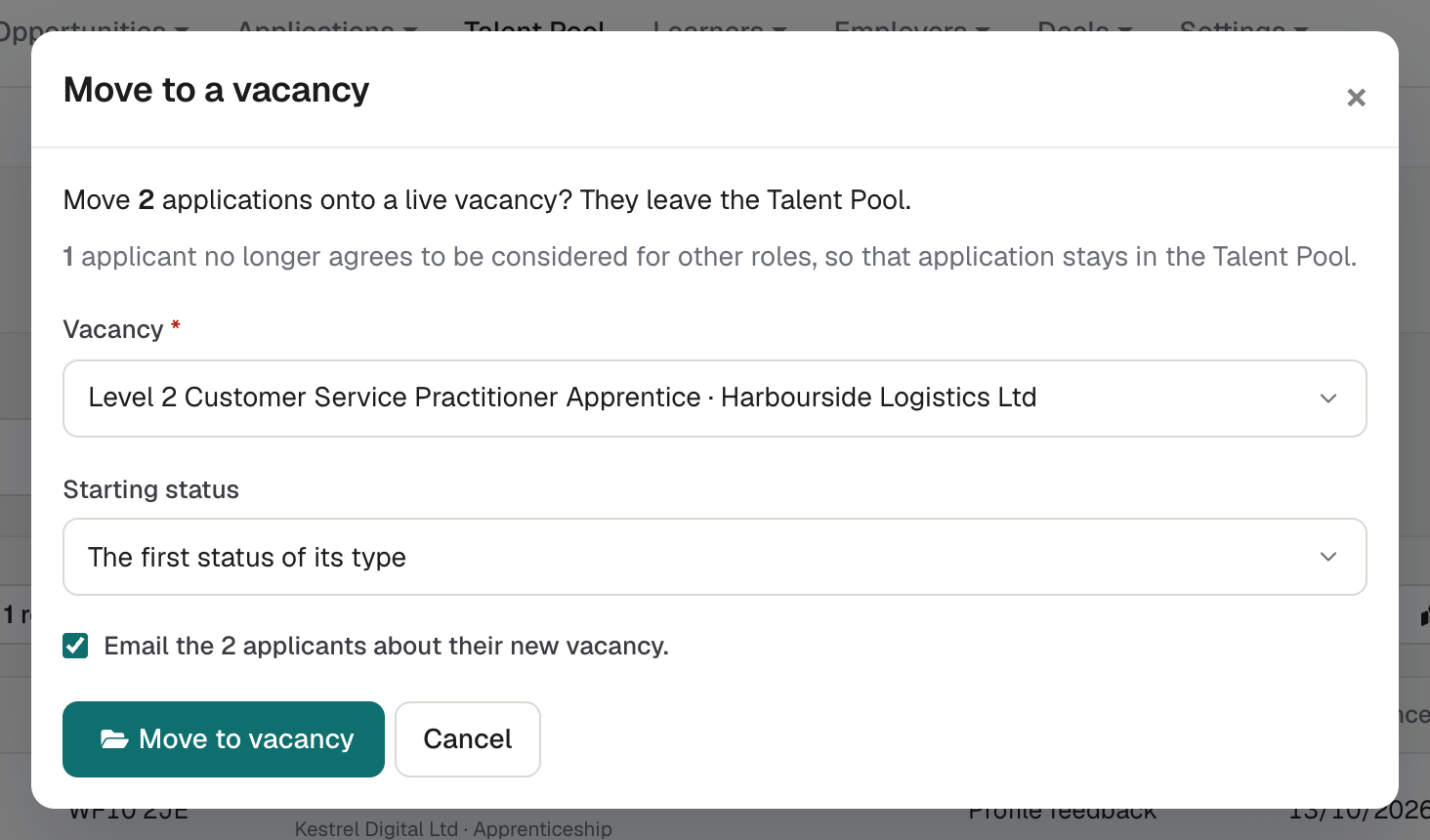
- The window asks, for example, "Move 3 applications onto a live vacancy? They leave the Talent Pool."
- Choose the Vacancy. Only your organisation's live vacancies are listed.
- Choose a Starting status from that vacancy's type, or leave it as The first status of its type. Ready for enrolment isn't offered.
- If the vacancy's type has the reassignment email switched on, Email the 3 applicants about their new vacancy. shows, ticked. Untick it to move them without an email. See Set up the reassignment email.
- Select Move to vacancy.
enrola confirms, for example "Moved 3 applications to Team Leader Level 3." The Applications leave the pool and join the vacancy at the status you chose.
Applicants who no longer agree to be considered for other roles stay in the pool, and the window says how many.
Archive them
On the Application, select Archive, then Archive in "Archive this application? It leaves the Talent Pool." To archive several, tick them in the Talent Pool list and choose With selected... → Archive. Application Logs records "Archived from the Talent Pool". You can move them back into the pool from the archived list.
The pool and closed vacancies
- Pool entries aren't on a vacancy, so closing a vacancy doesn't change them.
- Came from keeps the vacancy's name after it closes. The banner names its Employer while the vacancy still exists.
- When you close a vacancy, Move to the Talent Pool is the first choice for its Applications. Applicants who agreed to be considered for other roles go into the pool; the others are archived. See Close a vacancy now, and reopen it.
Good to know
- The pool's With selected... menu offers Email selected… (see Email people in the Talent Pool), Move to a vacancy…, Archive, LRS lookup and Accept LRS. Change labels or the Supervisor on each Application.
- Each organisation has its own pool. You only see your organisation's applicants.
- An applicant who applied more than once shows an ID card icon beside their name, which opens their application history. See Why does an applicant appear once on each page?
- With early access, Admins and Team Owners see Talent Pool form above the list. It opens the builder for a form people fill in to join your pool. See Let people join your Talent Pool with a form (early access).