Check whether an email was sent
enrola sends emails in the background, usually within seconds of you selecting Send. Status emails and Email activities then show a small label with what became of the email. Use it when someone says they never got an email from you. Everyone who can open the record can see the label.
Where to find the label
- Application Logs and Learner Logs: beside View email (or View invitation email for an interview) on a status change that sent an email, and on the "Emailed that … has closed" and "Emailed about being put forward for …" entries of the vacancy closed and reassignment emails.
- The Activities panel on an Application, Employer or Contact: beside the type email of each Email activity.
- An Email activity you open on an Employer or Contact: its button shows the label in place of Send.
Hover over the label to read why. Screen readers read the reason out too.

See everything that happened on View email
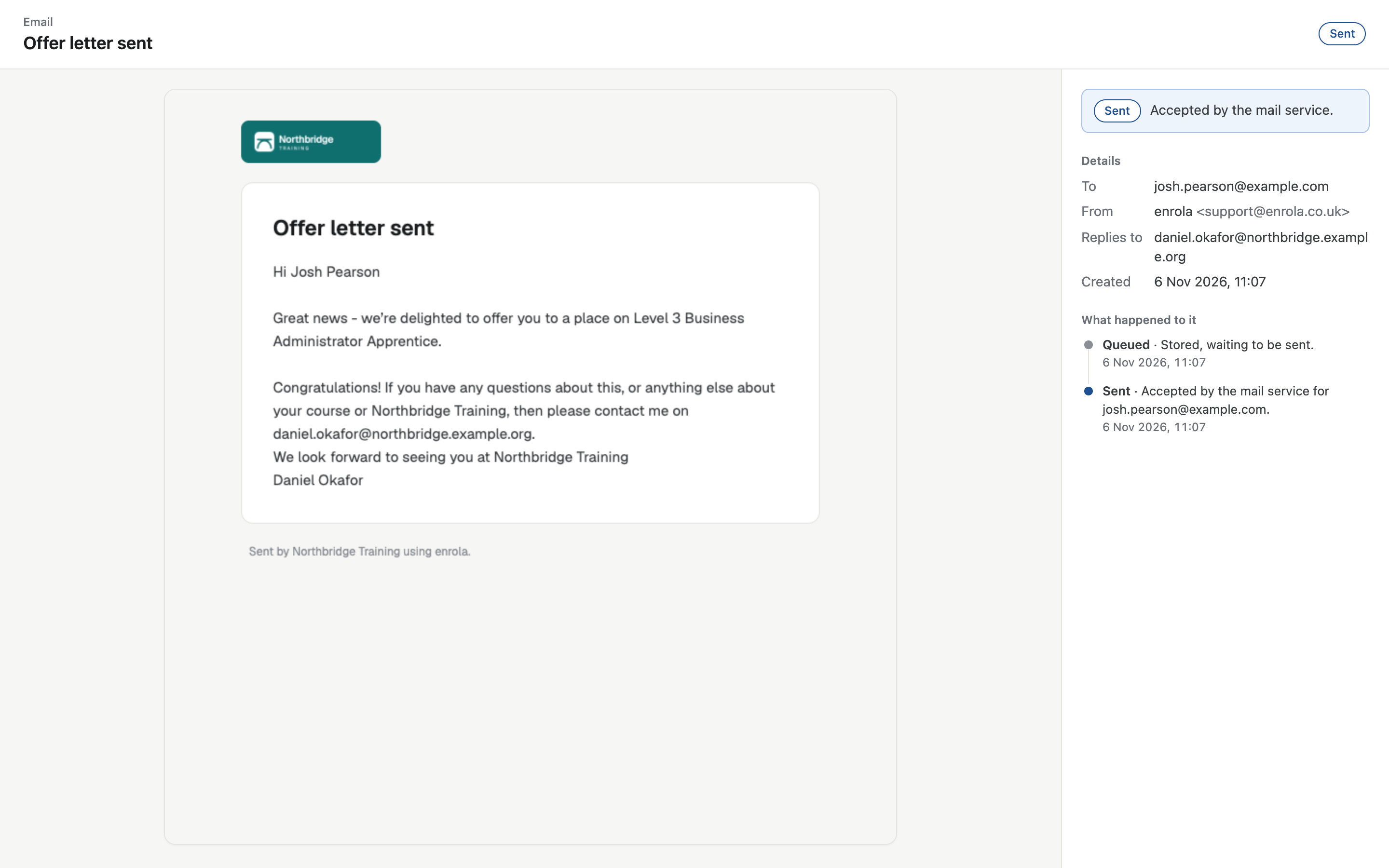
Select View email (or View invitation email) in Application Logs or Learner Logs. The email opens in a new tab, laid out like a mail client:
- At the top: the email's subject, with its label.
- In the middle: the email as it was sent.
- In a panel beside it:
- the label and its reason, in a box coloured to match;
- Details: who it went to (To, and Cc if anyone was copied in), who it was From, where replies go (Replies to), and when it was Created;
- What happened to it: each step, oldest first, with its date and time. It starts with Queued, then shows each recipient's outcome, such as Sent or Rejected.
In a narrow window or on a phone, the panel sits above the email. If you print the page, you get the details and the email.
Other emails, such as Request more info, shared applicant profiles and the emails enrola sends to your team, don't show a label.
What each label means
| Label | Colour | Meaning | Text when you hover |
|---|---|---|---|
| Queued | Grey | enrola has the email and is about to send it, or is trying again. | "Waiting to be sent." |
| Sent | Blue | The mail service accepted the email. | "Accepted by the mail service." |
| Rejected | Red | The mail service refused to send to an address. | "Not sent to" the address, and the reason |
| Invalid address | Red | The address isn't a real email address. | "Not sent:" the address "isn't a valid email address." |
| Failed | Red | enrola couldn't send the email at all. | "Couldn't be sent, after trying for about two hours." |
Sent has a blue label of its own, so you can tell it from a grey Queued at a glance. It means the email left enrola. It doesn't tell you whether it reached the inbox: it may still go to spam, or bounce later.
An email to more than one person, for example with Add CC, shows the worst label of its recipients.
Reasons for Rejected
| Reason shown | What it means |
|---|---|
| "emails to it have bounced before" | Earlier emails to this address couldn't be delivered. |
| "emails to it bounced recently" | A recent email to this address couldn't be delivered. |
| "its owner marked an earlier email as spam" | The person reported an earlier email as spam. |
| "its owner unsubscribed" | The person asked not to get these emails. |
| "it is on the block list" | The address is blocked from enrola's emails. |
| "it isn't a valid email address" | The address isn't a real email address. |
Any other reason is about enrola's own sending. Contact support at support@enrola.co.uk.
If there is no View email link
Some older status changes in Application Logs have no View email link and no label, although their email was sent. If you need to know what one of them said, contact support at support@enrola.co.uk.
When enrola tries again
If enrola can't reach the mail service, it tries again after 1, 3, 9, 27 and 81 minutes. The email shows Queued in the meantime. If the last try fails too, about two hours after the first, the email is marked Failed.
enrola doesn't try again when the mail service has answered. A Rejected email or an Invalid address stays as it is.
What to do when an email wasn't sent
Rejected or Invalid address
When this happens, the Application or Contact also shows a red alert, "Emails to this address aren't arriving." See Why does a record say emails aren't arriving?
- Hover over the label and read the reason.
- Check the person's email address with them, for example by phone.
- Correct the address on the Application, Employer or Contact. The alert goes once the new address is saved.
- Send the email again. To resend what a status sent, open View email, copy the text, and send it as an Email activity. See Send an email to an applicant or contact.
If the person bounced, unsubscribed or reported spam, the mail service won't send to that address again. Ask them for another address. If you are sure the address works and they want your emails, contact support at support@enrola.co.uk.
Failed
Contact support at support@enrola.co.uk, with the record and the time you sent the email. The enrola team can try to send it again. To avoid sending it twice, don't send it again yourself until you hear back.