Find out when someone mentions you in a comment
When a colleague mentions you in a comment on an Application, or replies in a comment thread you're in, enrola tells you. You see it under the bell in the header and, unless you turn it off, by email. This works for everyone who can sign in, Read Only users included.
What you are told about
| What happened | What you see |
|---|---|
| Someone mentions you in a comment or a reply | "Priya Kaur mentioned you on Jordan Smith's application" |
| Someone replies in a thread you started, replied to or were mentioned in | "Priya Kaur replied on Jordan Smith's application" |
You get one notification for each comment, even if you are both mentioned and in the thread. You are never told about your own comments. To write comments and mention people, see Comment on an Application and mention colleagues.
The bell
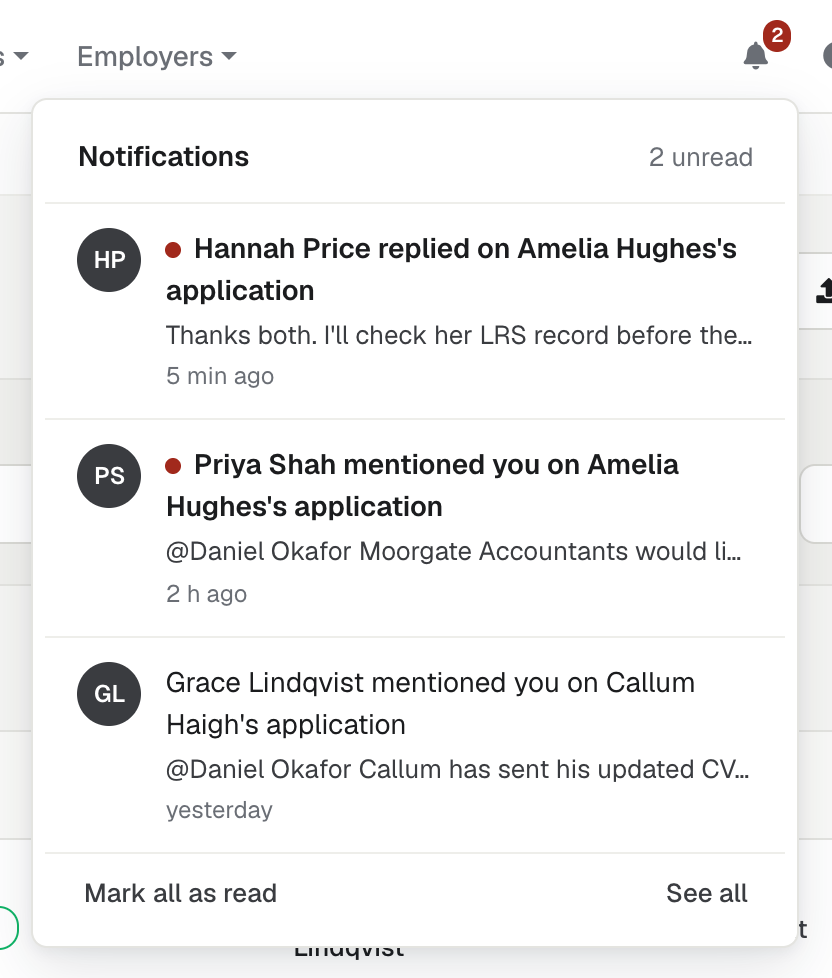
The bell sits in the header. A number on it shows how many notifications you haven't read, up to "99+". It updates about once a minute while enrola is open.
- Select the bell. A list opens with your 8 newest notifications. Each shows who did what, a line of the comment and when, such as "5 min ago" or "yesterday". Unread ones have a dot.
- Select a notification. enrola opens the Application at the comment and highlights it for a few seconds. The notification is marked as read.
At the bottom of the list, Mark all as read clears the count and See all opens the Notifications page.
If you belong to more than one organisation, each notification also names its organisation. Opening it switches you to that organisation.
The Notifications page
See all opens Notifications, with every notification, 50 to a page, newest first.
- Select All or Unread to choose what the list shows.
- Select Mark as read or Mark as unread beside a notification to change it.
- Select Mark all as read at the top to clear them all.
- Use Older and Newer to move between pages.
Opening an Application and reading the comments also marks their notifications as read.
The email
About two minutes after someone mentions you or replies to you, enrola emails you, unless you have already read the notification in enrola by then.
- Subject: for example "Priya Kaur mentioned you in enrola" or "Priya Kaur replied to a comment in enrola". If there are several at once, they come in one email, such as "3 new comments for you in enrola". The subject never names the applicant.
- Inside: the Application, such as "Application · Jordan Smith · Level 3 Business Administrator", up to 300 characters of the comment, and Open the comment, which takes you to it in enrola.
- Replies: replying to an email about one person's comments reaches that person, not enrola. To answer so everyone on the record can see, reply in enrola.
Turn the emails on or off
The setting is yours alone: it shows only on your own page, and an Admin can't change it for you.
- Select your name in the header, then Edit user.
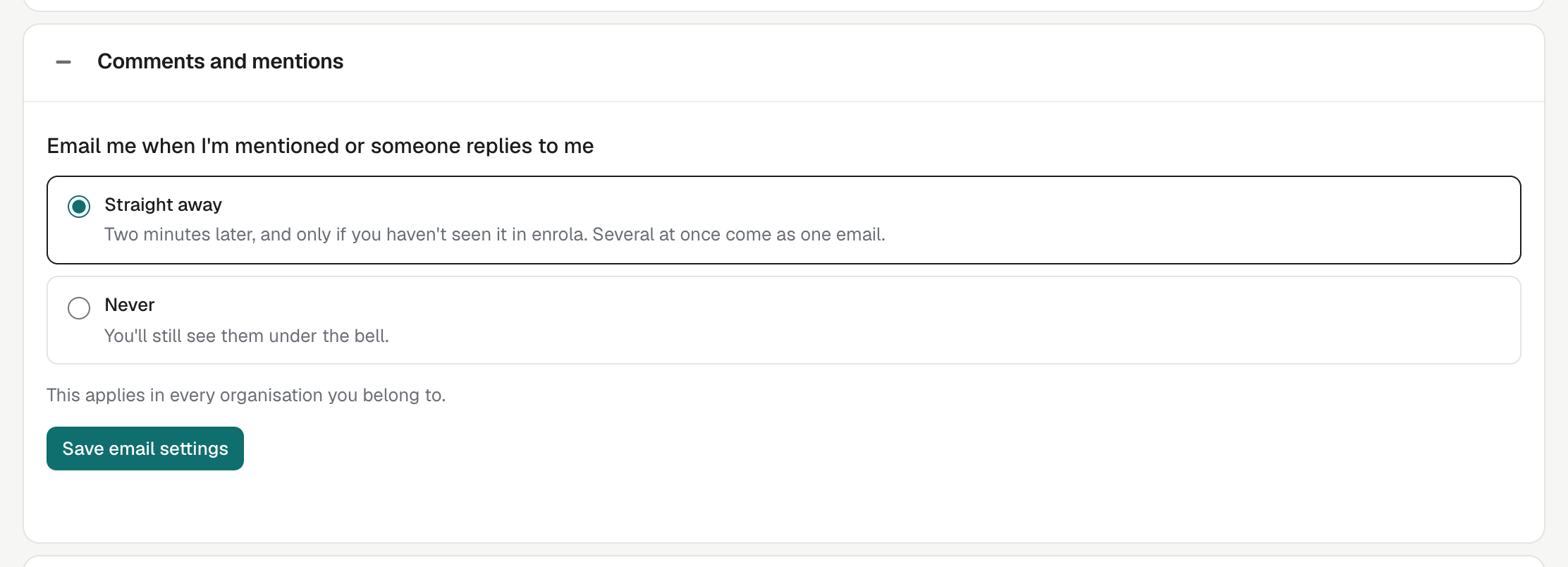
- Find Comments and mentions, under "Email me when I'm mentioned or someone replies to me".
- Choose Straight away or Never.
- Select Save email settings. enrola shows "Success: Email settings saved."
You don't need your password for this. Straight away is the setting everyone starts with. With Never, you still see your notifications under the bell. The setting applies in every organisation you belong to. The Change your email settings link at the bottom of each email opens the same page.
Good to know
- Notifications are deleted after 6 months, whether you read them or not.
- If you leave an organisation, its notifications are hidden. A disabled user gets no notifications or emails.
- If a comment is deleted, its notifications are removed.
- Some organisations still have the Notes panel instead of comments. Their users have no bell and no Comments and mentions setting, unless they also belong to an organisation that has comments.
- The mention email isn't one of the emails in Settings → Notifications. Each person chooses it for themselves.