Personalise an email with merge fields
Merge tags such as [@application_first_name@] fill in details for each person when enrola sends an email. Personalise subject and Personalise message let you search for the detail you want and add its tag where your cursor is. They replace the Legend that used to list tags under the editor.
Anyone who can write the email can use them. Email templates in Settings need an Admin or Team Owner.
Where you find Personalise
The Personalise card sits between the subject and the message in:
- status email templates in Settings → Applicant workflows and Settings → Employer workflows, and the Auto application email;
- the Send Email window that opens when you move an Application, Employer or Contact into an email status;
- the Send Email Interview Request window when you book an interview;
- Request more info on an Application, Send vacancy form on an Opportunity, and Request more info, Request ELI and Send feedback survey on an Employer record;
- the Vacancy closed email and the Reassignment email for each Opportunity type in Settings → Applicant workflows. See Email applicants when a vacancy closes or fills and Set up the reassignment email.
Emails you write as activities don't fill in merge tags.
Add a detail to an email
- Click in the subject or the message where the detail should go.
- Select Personalise subject or Personalise message. A search box opens under the card.
- Type what you want, such as
first name,start dateoremployer. The list narrows as you type. - Select a field, or move to it with the arrow keys and press Enter. The field's name, group and tag show, with a box called If empty, use….
- Optionally, type the words to show when the field is empty, such as
there. See Show other words when a field is empty. - Select Insert, or press Enter.
enrola adds the field's merge tag at your cursor, for example [@application_first_name@], and puts you back where you were typing. When the email is sent, the tag becomes the value, such as "Alex".
To pick a different field, select Back.
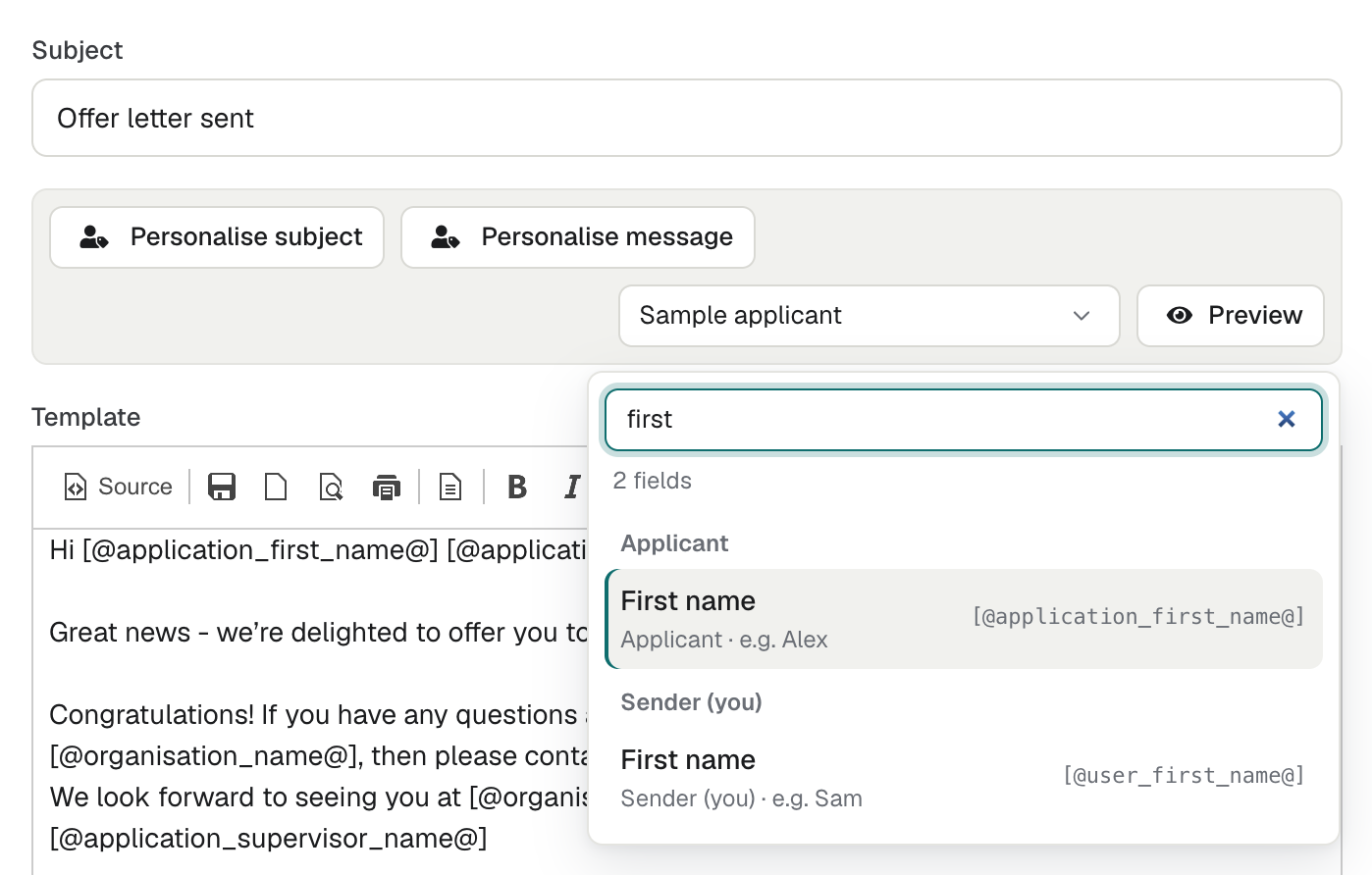
What the list shows
- Fields are in groups, such as Applicant, Application, Opportunity, Employer, Interview, Your organisation, Sender (you) and Links.
- Each field shows its name, its group with an example (for example "Applicant · e.g. Alex"), and its tag.
- Your own custom fields are marked Custom. Their tags use the field's number, such as
[@application_field_12@], so two fields with the same label are told apart. - The list holds only the fields this email can fill. For example, interview dates appear only in interview emails, and Sender (you) doesn't appear in the Auto application email, which nobody sends by hand.
- Some fields carry a note after their example. For example, in the vacancy closed and reassignment emails, Sender (you) fields say "Empty when nobody is signed in as it is sent, so add a fallback."
- The search matches names, groups, descriptions and tags, so typing an old tag such as
opportunity_headingstill finds the Opportunity's Title. - Above the list, enrola shows how many fields match, or "No fields match".
| Key | What it does |
|---|---|
| Up and Down arrows | Move through the list |
| Enter | Choose the highlighted field, then press Enter again to insert it |
| Esc | Close the search and go back to your text |
Selecting the button again, or clicking outside the search, also closes it.
Show other words when a field is empty
If a record has no value for a field, the email would leave a gap. Type words in If empty, use… and enrola shows them instead. For example, "Hi [@application_first_name|there@]," reads "Hi Alex," when the first name is filled in and "Hi there," when it isn't.
- The words go after a
|inside the tag. You can also type them yourself. - Use up to 60 characters.
- Don't use
@,[,],|,<or>. If you do, the box turns red with "Can't contain @ [ ] | < or >." and Insert stays unavailable. - A field counts as empty when it has no value or only spaces.
- In a link's address, the words must be a web address starting
https://orhttp://.
Preview the email
The Personalise card has a Preview button. Select it to see the email filled in and laid out as it will be sent, under the card. Nothing is sent or saved.
Preview works as an on/off switch:
- While the preview is showing, the Preview button has a dark ring, so it looks pressed.
- Select Preview again to hide the preview.
- The preview doesn't change as you type. To see your latest changes, select Preview twice: once to hide it, and once to show a fresh preview.
More about the preview:
- In a send window, the preview uses the record you are emailing. In an Employer's status email, the preview doesn't use the contact you chose in Send to, so
[@employer_contact_name@]shows as empty. The email you send fills it in. - In Settings, the preview starts with Sample applicant, made-up details marked Sample data. To use a real record instead, choose one of the last 20 Applications from the list beside Preview. For a status of an Opportunity type, the list holds that type's Applications. Changing the choice updates an open preview.
- Interview emails, Request more info and the requests from an Employer record preview with sample data only.
- Under the preview, enrola lists the fields that are empty for that record, for example "Empty for this record: Middle name (shows "friend")." The words in brackets are what If empty, use… shows.
- If the preview can't be made, it says "The preview couldn't be made. Try again."
- The Vacancy closed email and the Reassignment email have no Preview on the Personalise card. Use the Preview button lower down their window, which shows the email for a made-up applicant and vacancy.
When you save or send
enrola checks the merge tags in the subject and message before it saves a template or sends an email. If one is wrong, enrola doesn't save or send. It shows a message under the box instead:
| Message | What it means | What to do |
|---|---|---|
| "There is no field [@application_frist_name@]. Did you mean [@application_first_name@]?" | The tag has a typo, or doesn't exist. | Use the suggested tag, or add the field again from Personalise. |
| "This email can't fill [@interviewslot_date_from@], so it would not show a value. Remove it." | The tag belongs to another kind of email. | Remove it, or choose a field from Personalise. |
| "… is not a complete field. Type it again, without formatting inside it." | Part of the tag is formatted, for example bold, or its closing @] is missing. |
Delete what's left of it and add the field again. |
| "… is not a link, so it can't go in a link's address or an image." | A field that isn't a link is used as a link's web address. | Use a field from the Links group, or type the address. |
| "The text to use if empty in … is too long. Use at most 60 characters." | The If empty, use… words are too long. | Shorten them. |
| "The text to use if empty in … can't contain @ [ ] | < or >." | The If empty, use… words contain a character enrola uses for tags. | Remove the character. |
| "In a link's address, the text to use if empty in … must be a web address starting https://." | A link's address has If empty, use… words that aren't a web address. | Type a web address, or remove the words. |
Templates saved before these checks keep saving and sending as they are, until you change their merge tags. Once you add, remove or change a tag, enrola checks them all.
The Vacancy closed email and the Reassignment email aren't checked when you save them. Add their tags from Personalise, so they are spelt right.
Add a link
The Links group holds links such as Feedback survey link and Request info link. The employer's Website works as a link too. To add one as a link with your own words:
- Click in the message where the link should go.
- Select Personalise message and choose the link field.
- Tick Insert as a link.
- In Link text, type the words people click, such as "Tell us how it went". It starts as the field's name.
- Select Insert.
Insert as a link is only in the message, not the subject. A link has no If empty, use… words.
On a phone
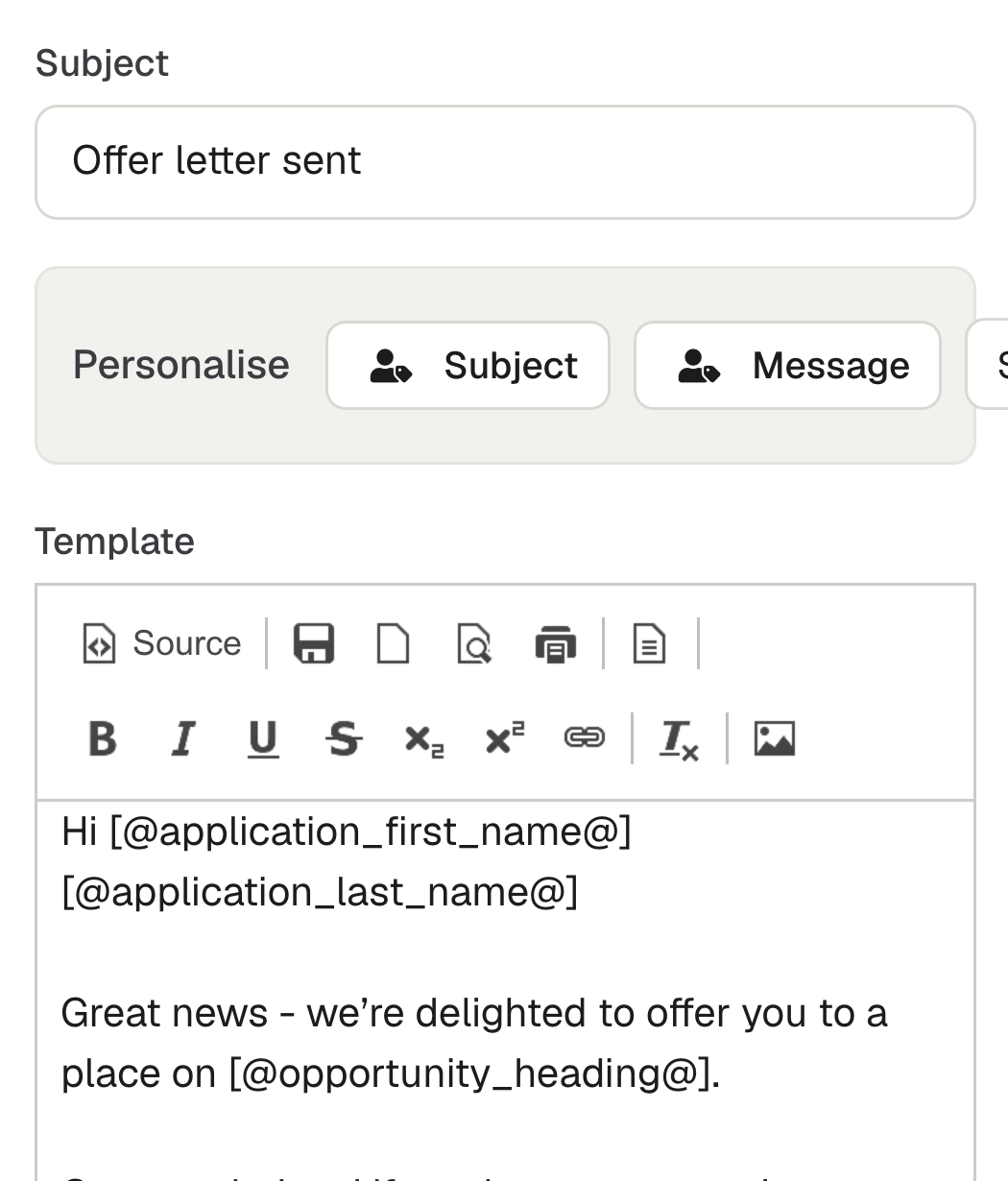
On a narrow screen the card says Personalise once, followed by two buttons, Subject and Message, on one row. The search opens across the full width of the card, with each tag under its field's name.
Good to know
- In the editor, a tag shows as typed, such as
[@application_first_name@]. Format the whole tag or none of it. If your organisation has early access, the new editor shows each tag as a labelled marker instead, such as "Applicant · First name". See Use the new text editor (early access). - If the record has no value for a field and you didn't give If empty, use… words, the tag is left out of the email.
- A tag enrola doesn't know is sent as typed.
- Custom field tags made from the field's label, such as
[@application_custom_preferred_start_month@], still work, even after the field is renamed. Personalise now offers the numbered tag instead.