Email applicants when a vacancy closes or fills
When a vacancy closes or fills, the applicants still waiting on it should hear that it has gone. The vacancy closed email tells them. Each Opportunity type has its own version, and it is off until an Admin turns it on. Admins and Team Owners set it up.
When enrola sends it
enrola sends the email in two cases.
When someone closes the vacancy with Close vacancy or Close selected. The Close window shows Email 3 applicants that the vacancy has closed., ticked. Untick it to send nothing. It goes to the applicants moved to the Talent Pool, archived or left on the vacancy, but not to those moved to another vacancy. See Close a vacancy now, and reopen it.
When the vacancy fills. A vacancy fills when the number of its Applications at Ready for enrolment reaches the Opportunity's Positions available. That happens when someone confirms the Ready for enrolment window for the last place. See Use Ready for enrolment and the enrolment form. enrola then says how many it is emailing, for example "Vacancy filled. 12 applicants have been emailed that it’s filled. 2 with an upcoming interview were not." If the email is off for the type, enrola says "Vacancy filled. Applicants weren’t emailed: set up a vacancy closed email in Settings → Applicant workflows."
It is not sent when a vacancy reaches its Advert Closing Date.
Who gets it
The vacancy's live applicants (and, when you close it, those moved into the Talent Pool or the archive), except:
- applicants at Ready for enrolment;
- applicants at a status of the Rejected type;
- applicants with no email address;
- applicants who have already had this email about this vacancy. If the vacancy is reopened and closes or fills again, only the applicants who weren't emailed the first time get it;
- when a vacancy fills, applicants with an interview still to come. When you close a vacancy, an upcoming interview doesn't keep someone off the list.
Set it up
- Go to Settings → Applicant workflows.
- Select Edit beside the Opportunity type, such as Apprenticeship.
- Beside Vacancy closed email, which shows Off or On, select Edit.
- Turn on Send this email.
- Check the Title, which is the email's subject, and the Template, which is its text.
- To add a detail such as the applicant's first name, click where it should go, then select Personalise subject or Personalise message and choose the field. See Personalise an email with merge fields.
- Select Preview, at the bottom of the window, to see the email for a made-up applicant and vacancy, in your organisation's branding. The button then reads Refresh preview: select it again after a change.
- Select Save. enrola shows "Vacancy closed email saved", and the row shows On.
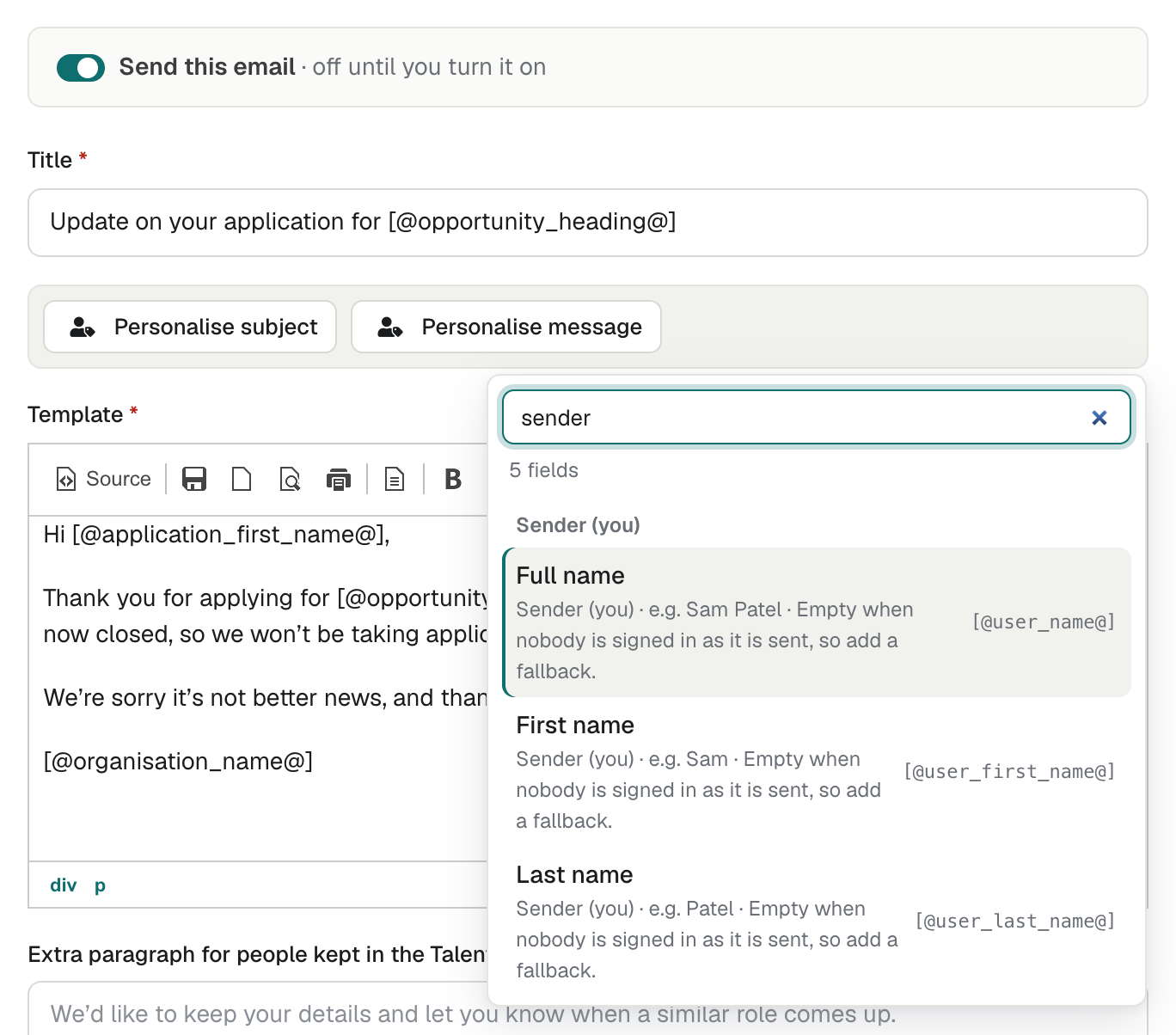
Fields you can add
Personalise lists only the fields this email can fill: the applicant, the Application, the vacancy that closed and its employer, your organisation, and Sender (you). The Links group holds only the Enrolment form link, which is filled only when an enrolment form has been sent.
Sender (you) is whoever closed the vacancy, or confirmed the last place. When nobody is signed in as the email goes, these fields are empty, so give them words to use when empty, for example [@user_first_name|the team@].
enrola doesn't check this email's tags when you save it, so add them from Personalise rather than typing them.
Repeat for each Opportunity type that needs it.
What it says
The title starts as "Update on your application for" followed by the vacancy's title. The text thanks the applicant for applying for the vacancy with the employer, says it has now closed and that you won't be taking applications for it any further, and is signed with your organisation's name. Change it to suit your organisation.
The email uses your organisation's branding. Replies go to your Team Owners.
Afterwards
Each applicant's Application history records "Emailed that (vacancy) has closed", naming the vacancy and its employer, with a View email link.
Good to know
- Extra paragraph for people kept in the Talent Pool is optional. enrola adds it to the end of the email for applicants the Close window moved into the Talent Pool. Others don't get it.
- enrola sends the emails in the background, so they may take a short while to arrive.
- Applicants you move to another vacancy may get the reassignment email instead, if its type has it switched on. See Set up the reassignment email.