See past imports and undo one
enrola keeps a record of every CSV (comma-separated values) import into your organisation. You can see which import added or updated a record, list just the records from one import, and undo an import that went wrong.
Everyone can see a record's import history and use the Import filter. Settings → Imports and Undo are for Admins and Team Owners. Users get "Access denied".
See which import added a record
A record that came from an import says so, with the import's name and the person who ran it:
- "Imported from 'Spring intake'" when the import added it.
- "Updated by import 'Spring intake'" when an import changed it.
If cells of its row were changed on Review before the import, the line goes on, for example "Changed before import: Email (was empty)".
Where to look:
| Record | Where |
|---|---|
| Application | The Application Logs panel, as an entry of type "Import". |
| Learner | The Learner Logs panel, as an entry of type "Import". |
| Employer or Contact | The timeline, under the Updates filter. |
| Opportunity | A line under the title at the top of the record. |
The history says that an import updated a record. It doesn't say what the record held before.
List the records from one import
On Applications (including the archived list and the Talent Pool), Opportunities, Employers and Contacts:
- Select Filters, then Add a filter.
- Choose Import.
- Choose the import, for example "Spring intake (27/10/2026)".
The list shows only the records that import added or updated. Select all, Export to CSV and the actions under With selected… use the same records, so you can, for example, label them all or export them to check.
On Learners, choose the import from the Import box beside the search box. Export all on Learners still exports every learner: tick the learners you want and use Export selected.
The filter offers imports that ran. It leaves out imports that failed or stopped with errors, which added nothing.
See every import on Settings → Imports
Select Settings → Imports, under Data.

The page lists every import into your organisation, by anyone, newest first (up to 200). Each row shows:
- Import: its name. Select it to open its records on their list, already filtered. An import that didn't import every row has a label beside its name: see the table below.
- Type, By and When.
- Added, Updated and Skipped (possible duplicates you didn't add).
- Errors: rows with errors, and rows that failed as the import ran. Select the number to open the import's page.
- Undo, while the import can still be undone.
| Label | What it means |
|---|---|
| Rows left out | It imported the other rows, but left out the rows you left out on Review. |
| Failed, nothing added | Rows couldn't be saved as it ran, so it added nothing. |
| Not finished | It hasn't finished, for example it is waiting at Review or Check. |
| Expired, nothing imported | A draft nobody worked on for 14 days. It was removed with its file. |
| Discarded, nothing imported | Someone discarded the draft. |
| Not imported | An older import that stopped because rows had errors, and imported nothing. |
Select Saved matches, above the table, to rename or delete your organisation's saved matches, or remove a fix they remember. See Import records from a CSV file.
See what one import did
Select an import's label or its Errors number to open its page. enrola also opens this page at the end of an import that left rows out.

The page shows:
- what happened, for example "Imported the other rows, but left out 2 rows with errors. Fix them, then import just those rows again.";
- Added, Updated, Possible duplicates skipped and Rows with errors, and Rows left out by you if you left out rows without errors;
- each row it left out, with its column and why. Rows are numbered as in a spreadsheet, where the headings are row 1;
- Changed before import: the cells changed on Review, who changed them, and their rows;
- Download the error file: a CSV with the row, column and error for each;
- Show the … it added or updated, which opens them on their list.
For an unfinished import, the page says where it is waiting and until when it is kept, for example "It is kept until 18 Nov 2026, then removed."
- The person who started it sees Continue this import.
- Any Admin or Team Owner can select Discard this import. Its file and changes are deleted and nothing is imported. You can't discard an import while enrola is checking or importing it.
enrola keeps the values changed before import for 90 days after the import, then clears them.
Undo an import
Undo deletes the records an import added. It is there for 7 days after the import finished, for imports of Applications, Opportunities, Employers and Contacts.
-
Select Settings → Imports.
-
Select Undo on the import's row.
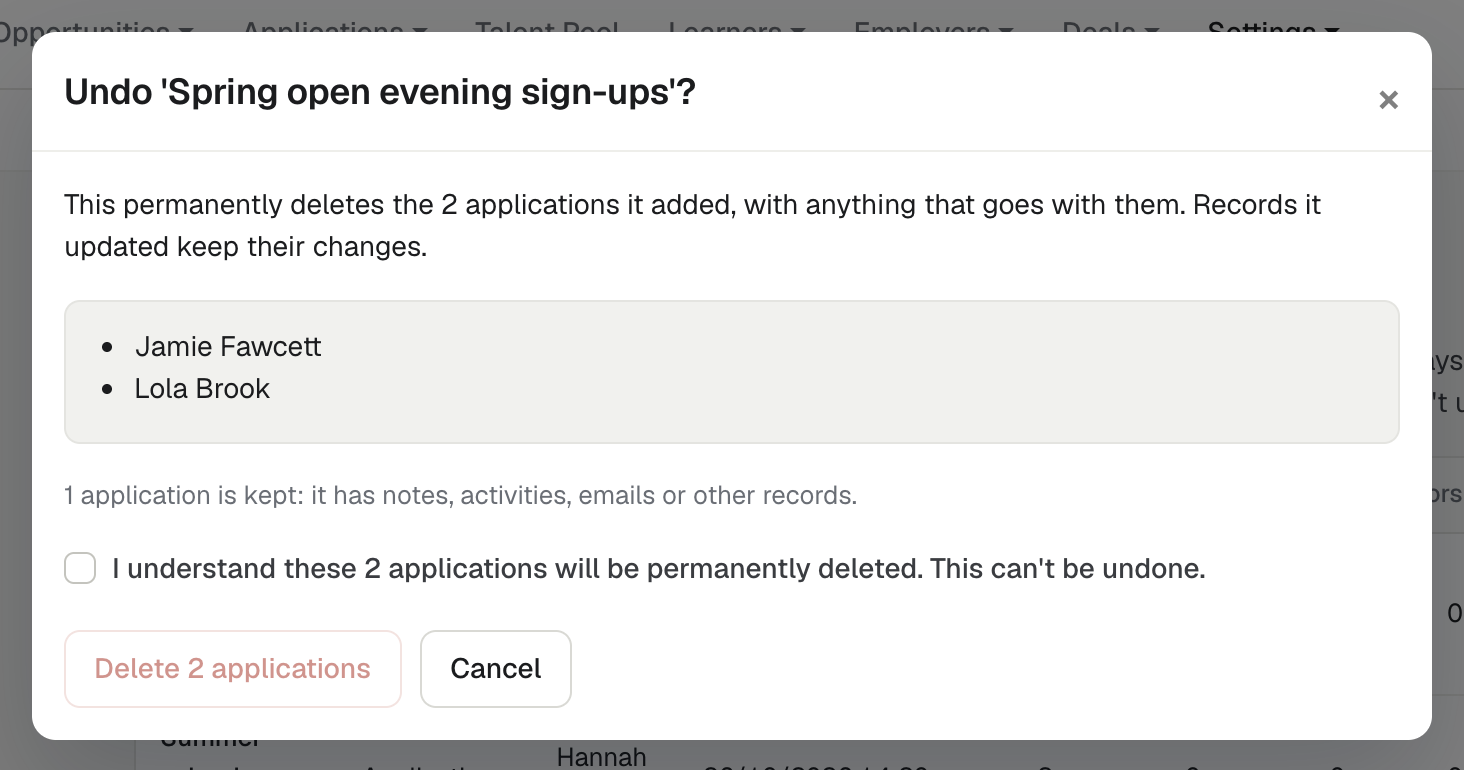
-
Read the dialog. It says how many records it deletes, names the first five, and says which it keeps and why.
-
Tick I understand … will be permanently deleted. This can't be undone.
-
If it deletes 20 or more records, type the number to confirm.
-
Select Delete, for example Delete 2 applications.
The dialog closes with "Undoing 'Spring intake'. The applications list shows how it's going."
enrola deletes the records in the background. The records' list shows a banner while it works, then, for example, "Deleted 2 applications. 1 kept: it has notes, activities, emails or other records." On Settings → Imports, the row then says "Undone: deleted 2, kept 1". Hover over it to see why records were kept.
Warning. Undo permanently deletes the records. As the dialog says: "Records it updated keep their changes." Undo doesn't put back what an import changed in existing records. enrola doesn't keep their earlier values, so check an update with a few rows before you import the rest.
What Undo keeps
Undo never deletes a record your team has worked on since the import. It keeps a record when:
- someone has changed it since the import: a person edited it, added a log entry, or another import updated it. Opening a record doesn't count, and nor do enrola's own automatic lookups.
- it has linked records:
- an Application's comments or notes, activities, emails, interviews, requests for more information or feedback;
- an Employer's Opportunities, Contacts, activities, emails or deals;
- a Contact's activities, emails, interviews or deals;
- an Opportunity's Applications (live or archived) or interview slots.
- the record can't be deleted for the same reasons as when you delete it from its list, for example an Opportunity that is still advertised on a job board or Find an apprenticeship (shown as NAS in enrola).
enrola checks again just before it deletes each record, so something added after you confirm still keeps it.
When there is no Undo button
Hover over the row to see why. For example:
- "Undo is available for 7 days after an import."
- "Undo isn't available for this record type yet." Learner imports can't be undone. To remove Learners you imported, choose the import in the Import box on the Learners list, select all the results and use With selected... → Delete selected. See Delete Learners.
- "It stopped with errors, so it added nothing."
- "It added no records." An import that only updated records has nothing to undo.
- "It has been undone."
If every record the import added has been changed, linked or deleted, the dialog says "Nothing to undo". If another delete of the same kind of record is running, the dialog asks you to try again when it has finished.
If an Undo stops part way, the row says "Undo stopped after …" and offers Undo the rest.