Review and fix problems in an import
After you match your file's columns, enrola checks every row and opens Review. It shows every problem with the file before anything is imported. Nothing is imported until each row with errors is fixed or left out. Admins and Team Owners can import; only the person who started an import can change it.
For the steps before and after Review, see Import records from a CSV file.
What Review shows
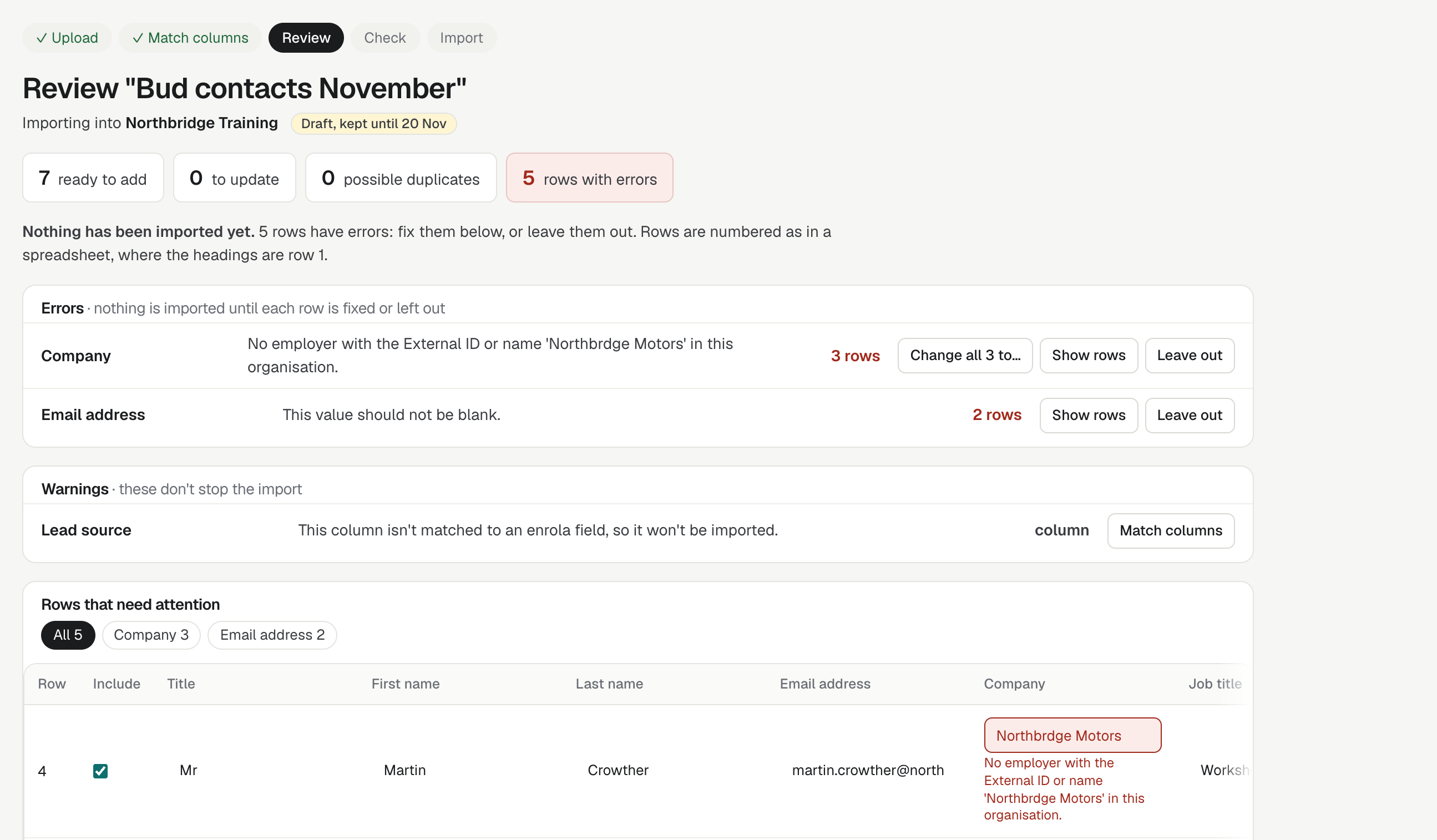
- The counts: how many rows are ready to add, to update, possible duplicates and rows with errors, and how many you have fixed or left out.
- Errors: one line for each column and problem, with how many rows have it, largest first. For example, a Contacts file might show "No employer with the External ID or name 'Northbrdge Motors' in this organisation." on 3 rows.
- Warnings, which don't stop the import:
- possible duplicates, which are skipped unless you tick them on the next step;
- an application for a vacancy that is closed: "… is closed: 3 applications will be added to it anyway.";
- a column of your file that isn't matched to an enrola field, so it won't be imported. To import it, cancel the import and match the column when you start again.
- Rows that need attention: only the rows with errors, the rows you fixed and the rows you left out, 50 to a page. Rows are numbered as in a spreadsheet, where the headings are row 1. A cell with an error is outlined in red, with the message under it. Use the buttons above the rows to show one group, Fixed or Left out.
If every row passed, Review says "Every row passed. Next, check what the import will do."
Fix one cell
- Click the cell and change its value.
- Press Tab or Enter, or click away.
enrola checks the whole row again, because one cell can affect another. A fixed cell shows "Saved", or later "Fixed (was …)". Enter moves down to the same cell in the next row. Escape puts the value back before you leave the cell.
A cell that names an employer, a vacancy or an opportunity type offers your organisation's records as you type.
When you have changed cells, Review shows "Rows have changed." Select Update the groups and counts to see the groups again.
Fix every row in a group
Each error group offers the fixes that suit it. A fix changes only that group's cells.
| Button | What it does |
|---|---|
| Change all … to… | Gives every cell in the group the value you choose. For an employer, vacancy or opportunity type, choose from your organisation's records. |
| Fill the empty cells… | Puts one value in every empty cell of the group. It isn't offered for Email, Unique Learner Number (ULN), External ID or enrola ID, because the same value on many rows would make them duplicates. |
| Convert all … to DD/MM/YYYY | Rewrites dates written with the year first, such as 2007-03-14, or with dashes or dots, such as 14-03-2007 or 14.03.2007. Dates with slashes that could be month first, such as 03/04/2007, are never converted: fix those yourself. |
| Show rows | Shows just that group's rows. |
| Leave out | Leaves out every row in the group. |
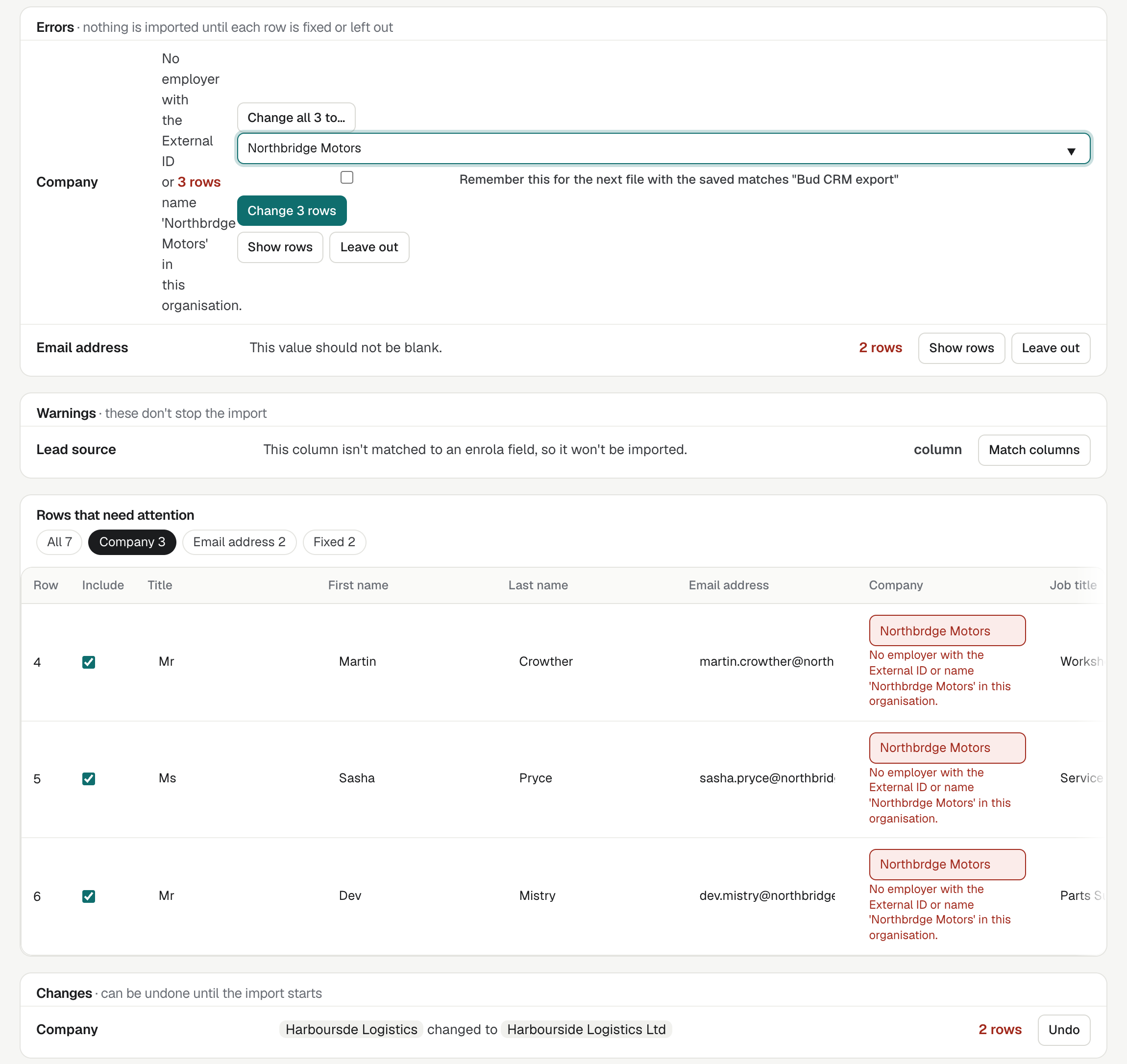
Each fix is listed under Changes at the foot of the page, with Undo. You can undo a change until the import starts. Undo puts back only the cells nobody has changed since.
A fix to more than 500 rows takes a moment: enrola shows the waiting page, then Review again.
Remember a fix for the next file
If the import uses saved matches, Change all … to… has a tick box: Remember this for the next file with the saved matches "…". Tick it, and enrola makes the same change to the next file that uses those saved matches, as soon as it is checked. Review lists it under Changes as "Remembered from saved matches", with Undo.
A remembered fix that no file has used for 90 days is forgotten. See Import records from a CSV file for saving matches.
Leave rows out
- To leave out one row, untick Include on it. Tick it again to put it back. A row put back with errors still needs fixing.
- To leave out a whole group, select Leave out on the group.
- To leave out every row that still has errors, select Leave out all ….
A row left out isn't imported, even if you fixed it. The Check step and the import's page list the rows you left out.
Fix them in a spreadsheet instead
Select Download these rows. You get the rows that need attention, in your file's own columns, with each row's number and errors. Fix them in a spreadsheet, then import them as a new file.
Go on to Check
When no row has errors left, select Next: Check. It can't be selected while a row has errors. If every row is left out, Review says "Every row is left out, so there's nothing to import. Include at least one row, or cancel this import."
If something changes before the import runs
enrola checks every row once more just before it imports. If your records have changed since, for example an employer was renamed, nothing is imported and you are back on Review: "Something changed since you checked, so nothing was imported: 2 rows now have errors. Fix them or leave them out, then import again."
What enrola records
enrola records every change you make on Review, and who made it. After the import:
- its page in Settings → Imports shows Changed before import, for example "2 cells changed on Review by Priya Shah", with each change and its rows;
- a record made from a changed row says so in its history, for example "Imported from 'Spring intake'. Changed before import: Email (was empty)".
Good to know
- Common errors are an empty required column, a date that isn't DD/MM/YYYY, a name or reference that matches nothing in your organisation, a value longer than its column takes ("Too long: the limit is 255 characters.") and a number too large ("Too large: the most is 2147483647.").
- If someone changed a cell in another window since you opened Review, your change to that cell is refused, and the row shows as it is now: "This row changed in another window. Here it is now."
- Fixes change what is imported, not your file. Fix your file too if you will import it again.