Write notes on Employers, Contacts and deals
The Note button on an Employer's, Contact's or deal's timeline writes a note your team can reply to. You can mention a colleague with @ so enrola tells them. Anyone who can open the record can write notes, Read Only users included.
Note. Some organisations still write notes the older way. If Note opens a form with Contact and Note fields, your notes are saved as activities. They can't be replied to, Read Only users can't add them, and deals have no Note button.
Write a note on an Employer or Contact
- Open the Employer or Contact. Find the Activities panel.
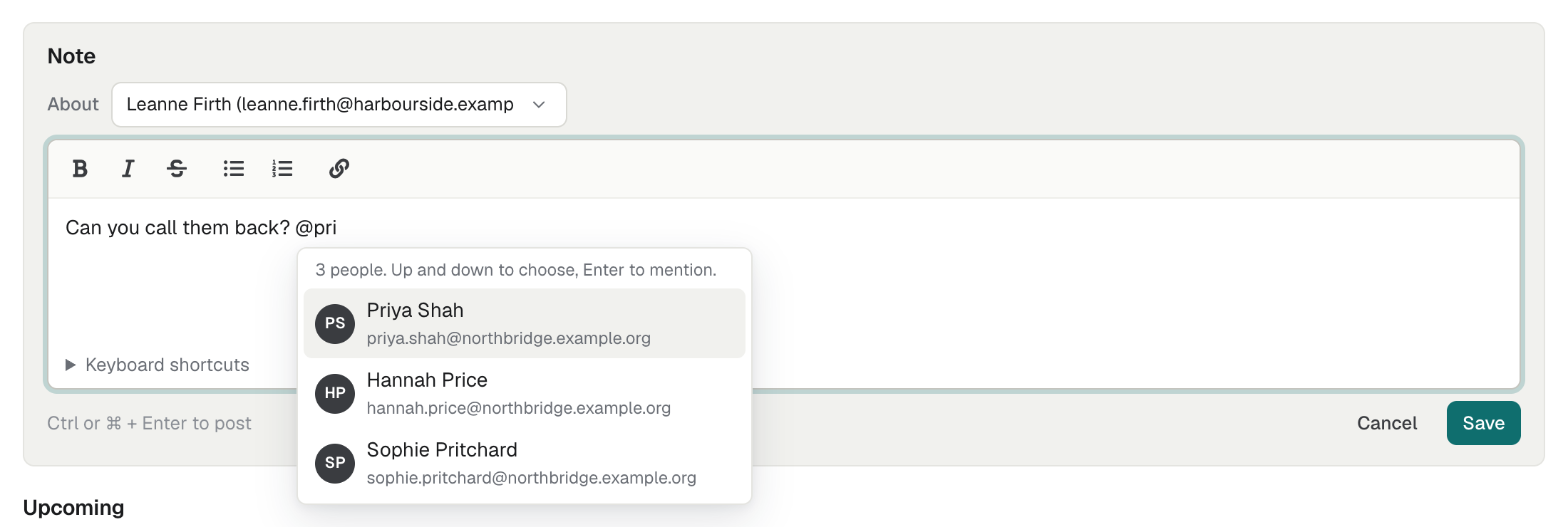
- Select Note. A box headed Note opens, saying "Write a note. Type @ to mention someone."
- On an Employer, choose who the note is About: The employer, or one of its active contacts. On a Contact, the note is about that contact.
- Write the note. You can use bold, italic, strikethrough, lists and links.
- Select Save, or press Ctrl + Enter (⌘ + Enter on a Mac). Cancel closes the box.
The note appears at the top of the timeline, under All and Notes.
- On the employer's timeline, a note about a contact says "about" and the contact's name.
- A note about a contact also shows on that contact's timeline. A note about the employer shows only on the employer's.
Write a note on a deal
If your organisation uses Deals, a deal's Activity panel has a Note button too.
- Open the deal.
- In the Activity panel, select Note.
- Write the note, then select Save.
A note on a deal stays on the deal. It doesn't show on the timelines of the deal's employers or contacts. See Log activities on a deal and see its history.
Mention a colleague
Type @ and the start of a name or email address, then choose the person from the list. They show as a chip, such as "@Priya Kaur". You can mention anyone in your organisation whose account is enabled. The record's owners come first in the list.
enrola tells the people you mention under the bell in the header and, unless they have turned it off, by email. For example:
- "Priya Kaur mentioned you on Harbourside Logistics Ltd"
- "Priya Kaur mentioned you on Sam Lee at Harbourside Logistics Ltd"
- "Priya Kaur mentioned you on the deal Harbourside Logistics: 3 Level 3 starts"
Selecting the notification opens the record at the note. See Find out when someone mentions you in a comment.
Reply, edit or delete
- Select Reply under a note, write your reply and select Reply. Everyone in the thread is told.
- Edit shows on your own notes and replies.
- Delete shows on your own. Admins and Team Owners can delete anyone's. A deleted note that has replies shows "Comment deleted", and its replies stay.
These work as they do for comments on an Application. See Comment on an Application and mention colleagues.
Warning. You can't undo a delete. Deleting an Employer, Contact or deal also deletes its notes.
Notes written before
Notes written before your organisation had this kind of note stay on the timeline as they were. They show under Notes, but have no Reply.