Write email templates for contacts
Email templates are ready-made emails your team can start from when they email an employer contact. Admins and Team Owners write them in Settings → Email templates. Users, Admins and Team Owners use them on Contact and Employer records. Read Only users can't send emails, so they don't see templates.
Templates are for emails to contacts. Emails to applicants are written in your status templates instead. See Write the email a status sends.
Add a template
You need to be an Admin or Team Owner.
-
Open Settings → Email templates. It is in the Employers group.
-
Select Add template.
-
Type a Name. Only your team sees it, in the list of templates to start an email from.
-
Type a Subject.
-
Write the email in Message.
-
To fill in the contact's, employer's or your own details, use Personalise subject and Personalise message. See Personalise an email with merge fields.
-
Select Save template.
enrola says "Template added." and the template shows in the list.
To check how it reads, select Preview on the Personalise card. It starts with Sample contact, made-up details. To use a real contact instead, choose one of your last 20 contacts from the list beside Preview.
What a template can fill in
A template is filled in for the contact the email goes to, from the person sending it. Personalise offers four groups:
| Group | Tags |
|---|---|
| Employer contact | [@employercontact_first_name@], [@employercontact_last_name@], [@employercontact_email@], [@employercontact_title@] (such as Ms or Mr), [@employercontact_job_title@], [@employercontact_phone@], [@employercontact_mobile@] |
| Employer | The contact's employer: its name, email, website, address, your custom fields on Employers, and [@employer_contact_name@], the contact's full name |
| Sender (you) | [@user_name@], [@user_first_name@], [@user_last_name@], [@user_email@], [@user_phone@] |
| Your organisation | [@organisation_name@] |
Templates can't fill in anything about an Application, an Opportunity or an interview. For the full list of employer tags, see Merge tags in employer emails and requests.
Change, copy or delete a template
The list shows each template's name and subject, and when it was last changed and by whom.
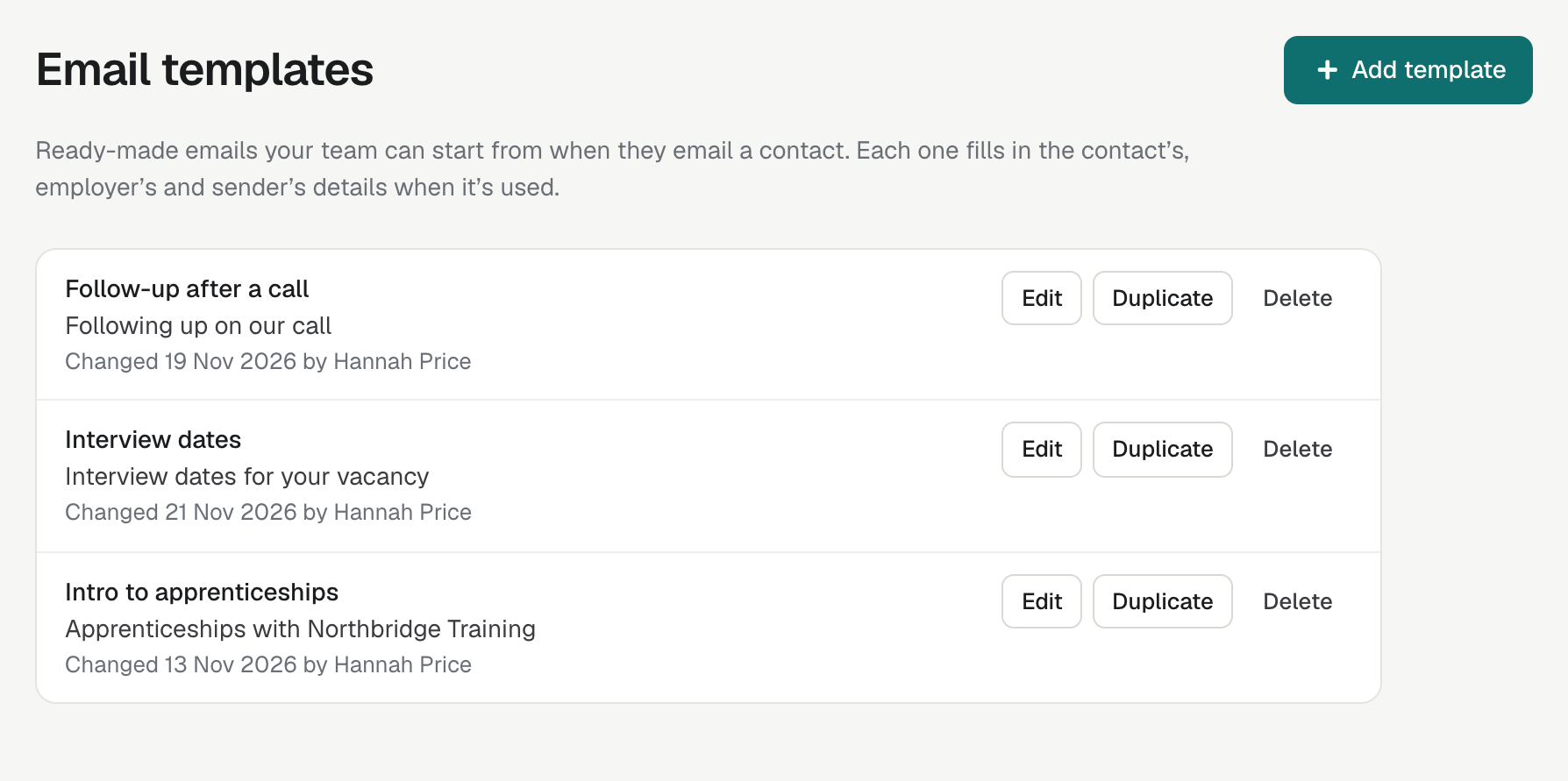
- Edit opens the template. Change what you need and select Save template.
- Duplicate makes a copy called "Copy of …" and opens it, so you can start a new template from an old one.
- Delete asks first: "Delete … ? Emails already sent from it stay as they are." Select Delete template to confirm.
Changing a template doesn't change emails already sent from it.
Start an email from a template
-
Open the Contact or the Employer.
-
On the timeline, select Email.
-
On an Employer, choose the contact in To first. Until you do, Use a template is greyed out and says "Choose who it's to first".
-
Select Use a template and choose a template. With more than eight templates, type in Find a template to narrow the list.
enrola fills in Subject and Message for that contact.
-
Check the email, change anything you need, and select Send.
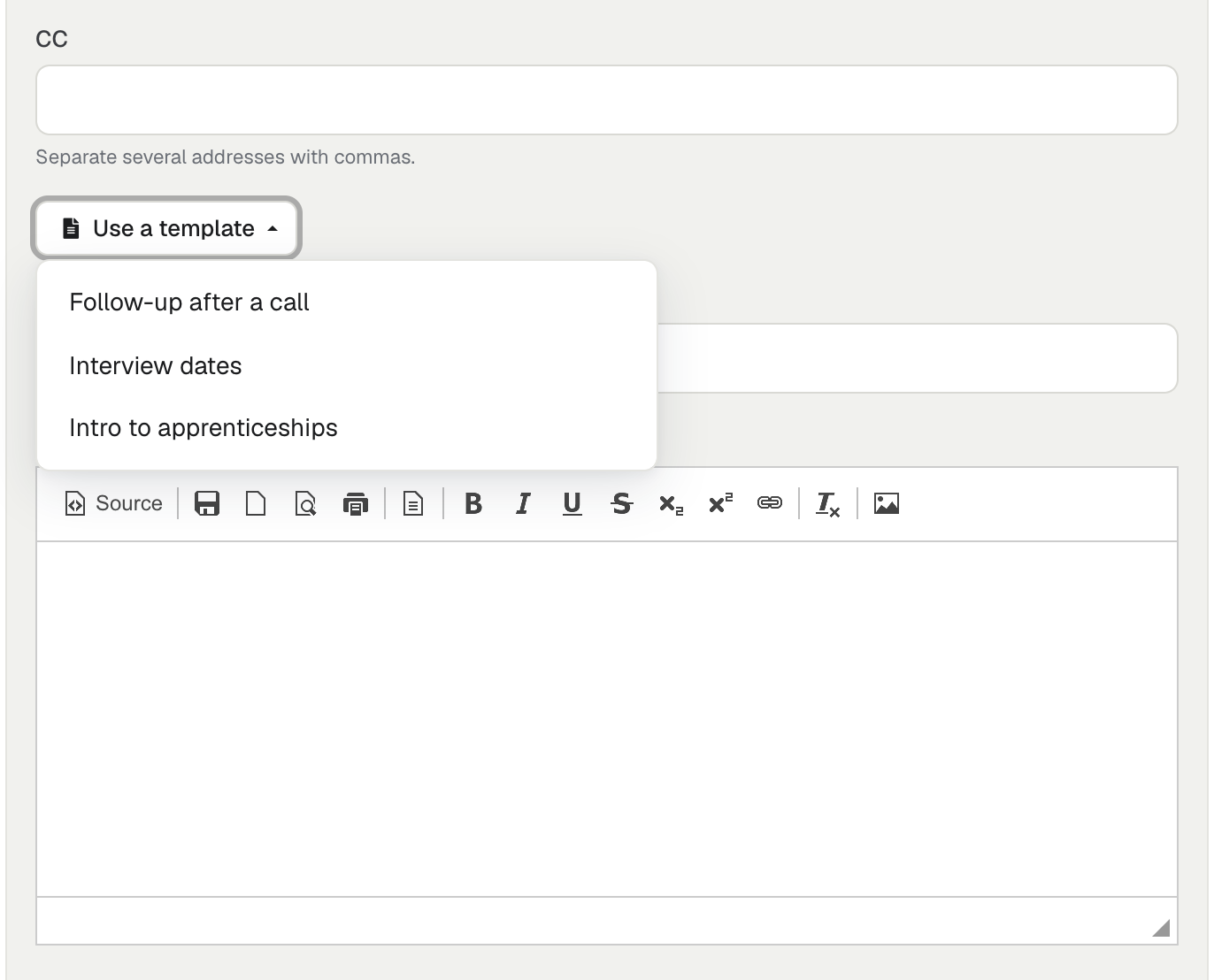
If Subject or Message already has text, enrola asks "Replace what you've written with "…"?" first.
Under the message, enrola names any fields that are empty for that contact, for example "Empty for Pat Lee: Job title, Mobile." Add the missing words yourself, or add the details to the contact's record and choose the template again. If you choose a different contact in To after using a template, enrola offers to fill the template in again for them.
Use a template is also on a new email in the activity window (Employers → Activities → Add, with Type set to Email).
Good to know
- Use a template shows only when your organisation has at least one template.
- Each template needs its own name. If the name is taken, enrola says "There's already a template with this name."
- The email you send is the filled-in text you see, not the template. Merge tags you type into the email yourself aren't filled in.
- Users and Read Only users can't open Settings → Email templates.