Send an employer a vacancy form
Employers often know the details a vacancy needs, such as the hours, the pay and what the job involves. Send vacancy form emails the employer a form for the fields you choose. The form is laid out like the advert, with a preview beside it. When they send it back, you decide which answers to add to the Opportunity. Users, Admins and Team Owners can send a vacancy form.
Before you start
Send vacancy form is at the top of the Opportunity. It is grey until the Opportunity has:
- an Employer in the Summary panel;
- at least one Supervisor.
The Opportunity doesn't need a Contact. You choose who receives the form when you write the email.
Choose the fields
- Open the Opportunity and select Send vacancy form.
- On Send a vacancy form to the employer, tick each field you want the employer to fill in. Each field shows its current value in brackets, or "Empty".
- Select all ticks every field and Deselect all clears them. The count beside them shows how many fields you've chosen.
- To change how a field appears to the employer, select Edit field beside it:
- turn on Required field? if the employer must answer it;
- type a Custom label for user to change the question they see.
- Select Next: write the email.
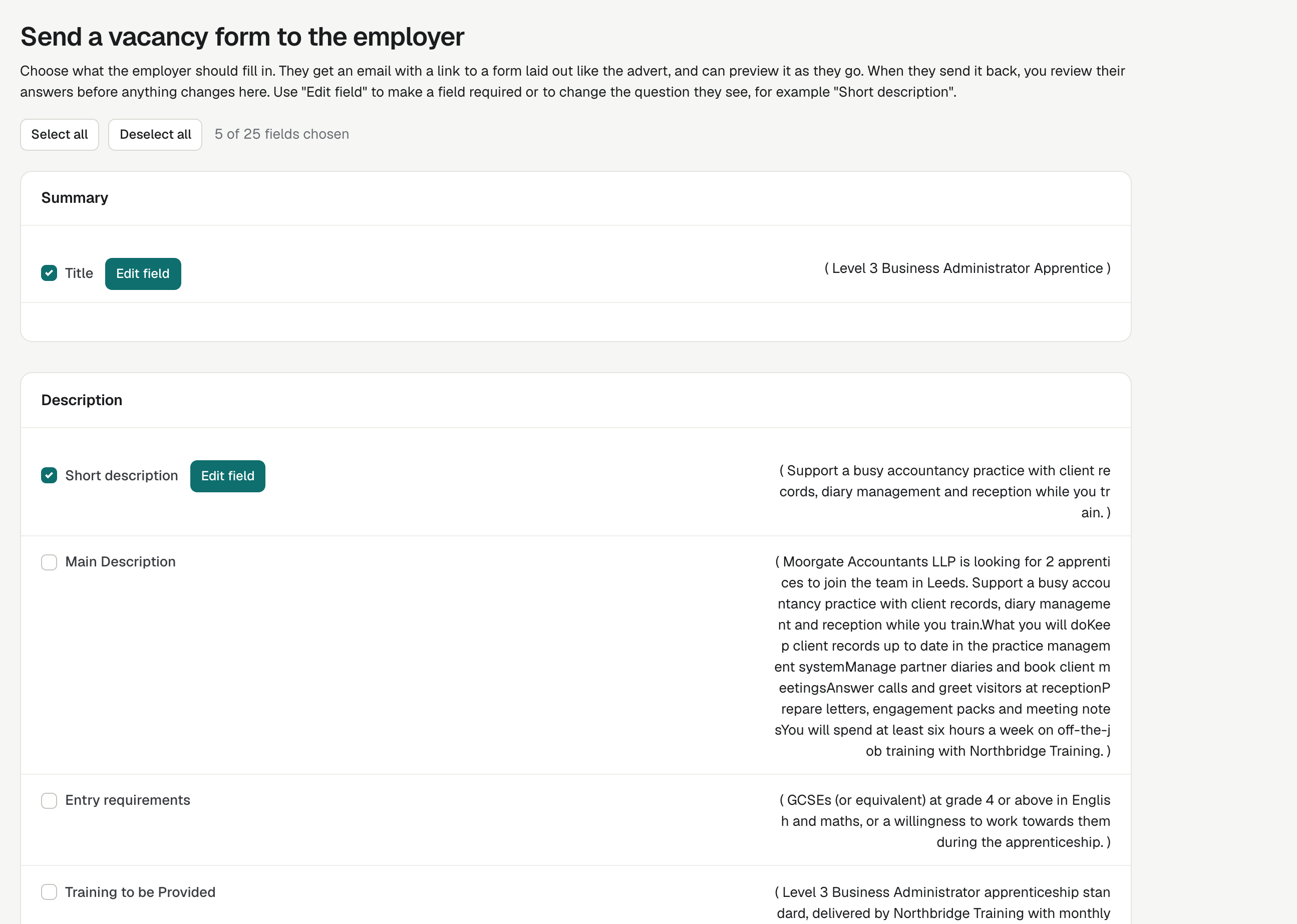
You can ask for most of the vacancy, including the Title, the minimum and maximum salary, and the details in the NAS panel for Find an apprenticeship (shown as NAS in enrola), such as wage type, hours per week and working week.
Write and send the email
- In Send the vacancy form, check Send to. enrola suggests the email address of the Opportunity's Contact. Change it if someone else will fill in the form: it doesn't have to be the vacancy's contact. If the Opportunity has no Contact, type an address.
- Check the Subject and the message. The subject starts as "Vacancy details needed:" followed by the Opportunity's title, and the message already contains the Fill in the vacancy details link.
- To add a merge field, use Personalise subject or Personalise message. See Personalise an email with merge fields.
- Select Save to send the email.
The Opportunity now shows "Vacancy form sent. Waiting for the employer to complete it." Replies to the email come to you.
What the employer sees
The link opens a form headed with your organisation's name and the Opportunity's title. The fields you chose are grouped as an advert would be:
- About the vacancy
- Pay and hours
- Training and what comes next
- Who you’re looking for
- About your company
- Other details, for anything else you asked for
An Advert preview beside the form updates as the employer types. On a phone, the preview is below the form, and Preview the advert jumps to it. Required fields are marked with an asterisk.
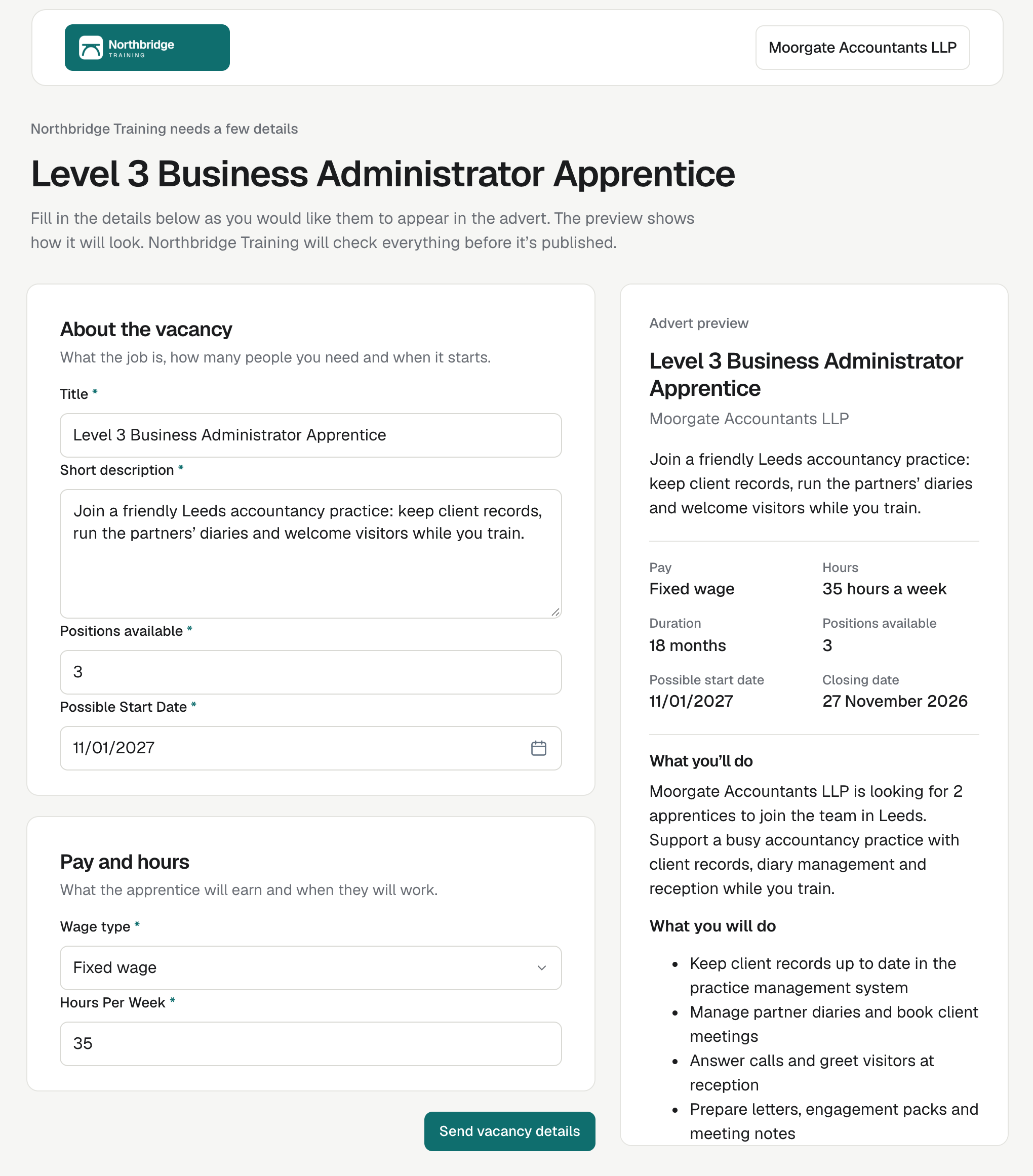
When they select Send vacancy details, they see "We’ve received your vacancy details and will check them before the advert goes live."
Review and add their answers
When the employer sends the form, you get an email called "More information submitted by employer". The Opportunity shows "The employer has completed the vacancy form."
- Select Review and add their answers.
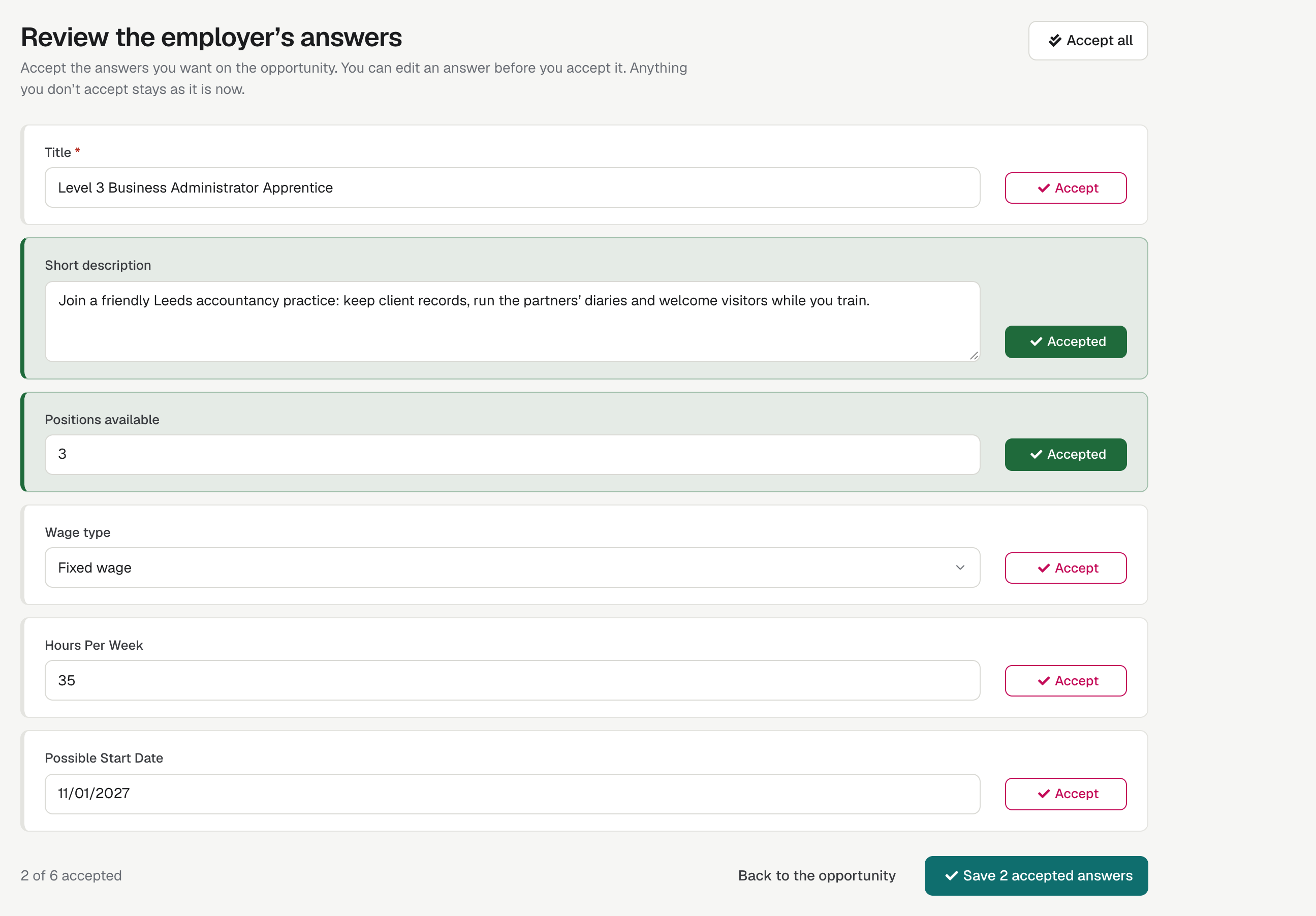
- On Review the employer’s answers, read each answer. You can change an answer before you accept it.
- Select Accept beside each answer you want on the Opportunity, or Accept all.
- Select Save accepted answers. The button counts them, for example Save 2 accepted answers.
enrola shows "The answers you accepted are on the opportunity." Answers you didn't accept are not saved, and those fields stay as they were.
Good to know
- Nothing reaches the Opportunity, or any job board, until you accept it. Check the accepted fields against each job board's rules before you post. See What Find an apprenticeship needs before it accepts a post.
- The link stops working 30 days after you send it if the employer hasn't sent the form. The employer then sees "This link no longer works."
- Once the employer has sent the form, opening the link again shows the thank-you message, so they can't change their answers.
- While a vacancy form you sent is waiting or not yet reviewed, Send vacancy form is hidden for you on that Opportunity. It comes back once you save accepted answers.
- Asking an applicant for more information works in a similar way, with its own page. See Ask an applicant for more information.