Track deals with employers on the Deals board
A deal is training you are agreeing with an employer, such as "Acme: 3 Level 3 starts in September". The Deals board shows each deal's stage, value and expected starts.
Deals is optional: an Admin switches it on. Then everyone in your organisation can see it. Users, Admins and Team Owners can add, change, move and delete deals; Read Only users can look, and write notes on a deal.
Switch Deals on (Admins)
-
Go to Settings → Deal stages, under Employers in the Settings menu.
-
Select Start using Deals.
enrola says "Deals is on. Your team can find the board under Deals in the menu."
You start with six stages: New, Qualified, Proposal sent, Negotiation, Won and Lost. A Deals menu appears for everyone.
Note. Settings has no way to switch Deals off again. Agree with your team that you want it before you start.
Set up the deal stages (Admins)
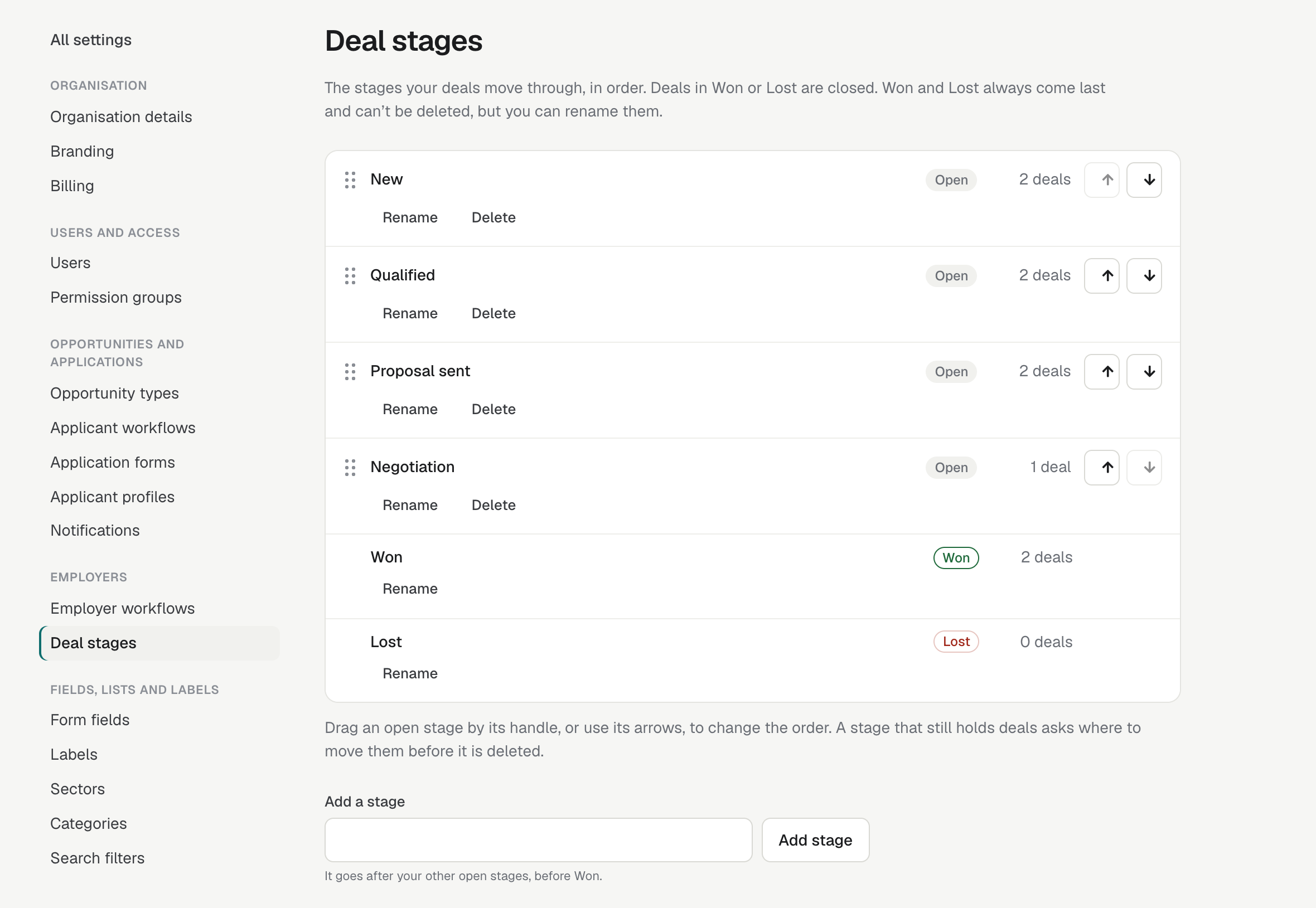
Deals move through your open stages in order and end in Won or Lost. On Settings → Deal stages:
- Add a stage: type its name and select Add stage. It goes before Won.
- Rename: type the new name and select Save name. This works for Won and Lost too.
- Change the order: drag an open stage by its handle, or use its arrows. Won and Lost always come last.
- Delete an open stage: select Delete under it. If it holds deals, choose the stage to move them to. Then select the Delete button with the stage's name.
Each stage shows how many deals it holds. Stage names must differ, whatever their capitals. You can't delete Won, Lost or your last open stage.
The board
Go to Deals → Board.
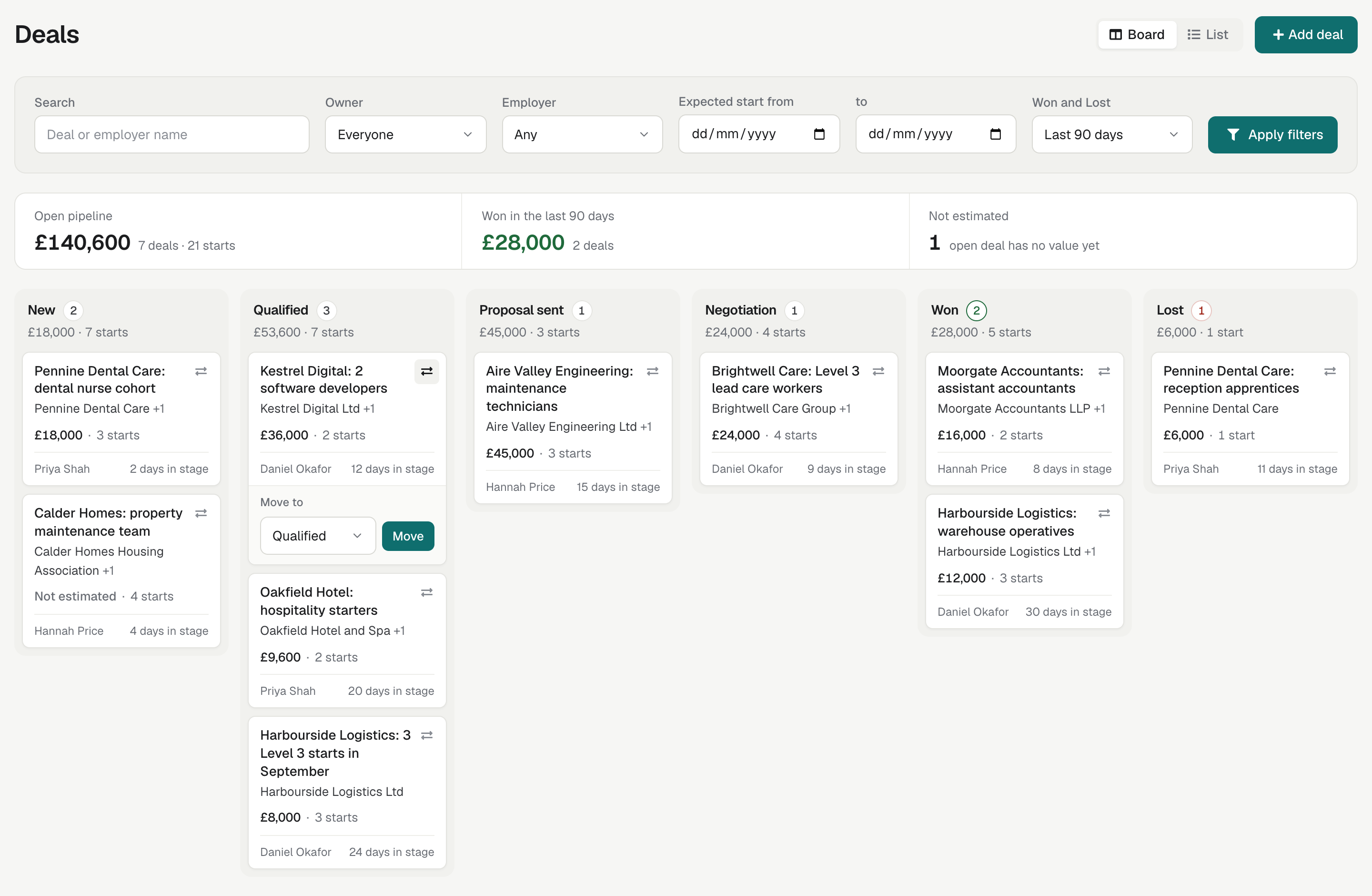
The heading has the Board | List switch and Add deal. Below the filters, a summary strip shows your Open pipeline (value, deals and expected starts in open stages), what you Won in the last 90 days (or Won, when the filters show all closed deals), and how many open deals are Not estimated (have no value yet).
Each stage's column shows its number of deals beside its name, then their total value and expected starts. The count is green for Won and red for Lost.
A card shows the deal's name, its first employer (with +1 and so on for more), its value and expected starts, its owner and how many days it has been in the stage. Select the name to open the deal. A column shows the 50 most recently moved deals. If there are more, select Show all N in the list to see them all.
| Filter | What it does |
|---|---|
| Search | Finds deals by deal or employer name. |
| Owner | Everyone or Mine. |
| Employer | Shows one employer's deals. |
| Expected start from and to | Shows deals expected to start between two dates. |
| Won and Lost | Closed deals from the Last 90 days (the default), or All. Open deals always show. |
Select Apply filters to apply them and Clear to remove them. You can bookmark a filtered view or send its address to a colleague. The totals count every deal that matches, not only the cards shown. For a sortable table, select List at the top. See See your deals as a list, and on records.
On a phone, the stages stack one above the other. Select a stage's arrow to open or close it. Won and Lost start closed.
Add a deal
-
At the top of the board, select Add deal.
-
Type a Name, for example "Acme: 3 Level 3 starts in September".
-
Check the Stage. A new deal starts in your first open stage.
-
If you know them, add the Value in pounds, the Expected starts and the Expected start date (DD/MM/YYYY).
-
Check the Owner. It is you unless you choose a colleague.
-
Choose the Employer. The box first lists the employers you are an Assigned Supervisor for; type to search them all.
-
Select Add deal.
enrola says "Deal added." and opens the deal.
A deal needs a name, an owner and at least one employer. If one is missing, enrola says so beside the field, for example "Add at least one employer."
You can also select Add deal on the list, or in the Deals panel of an Employer, Contact or Opportunity, which fills in that record.
The deal record
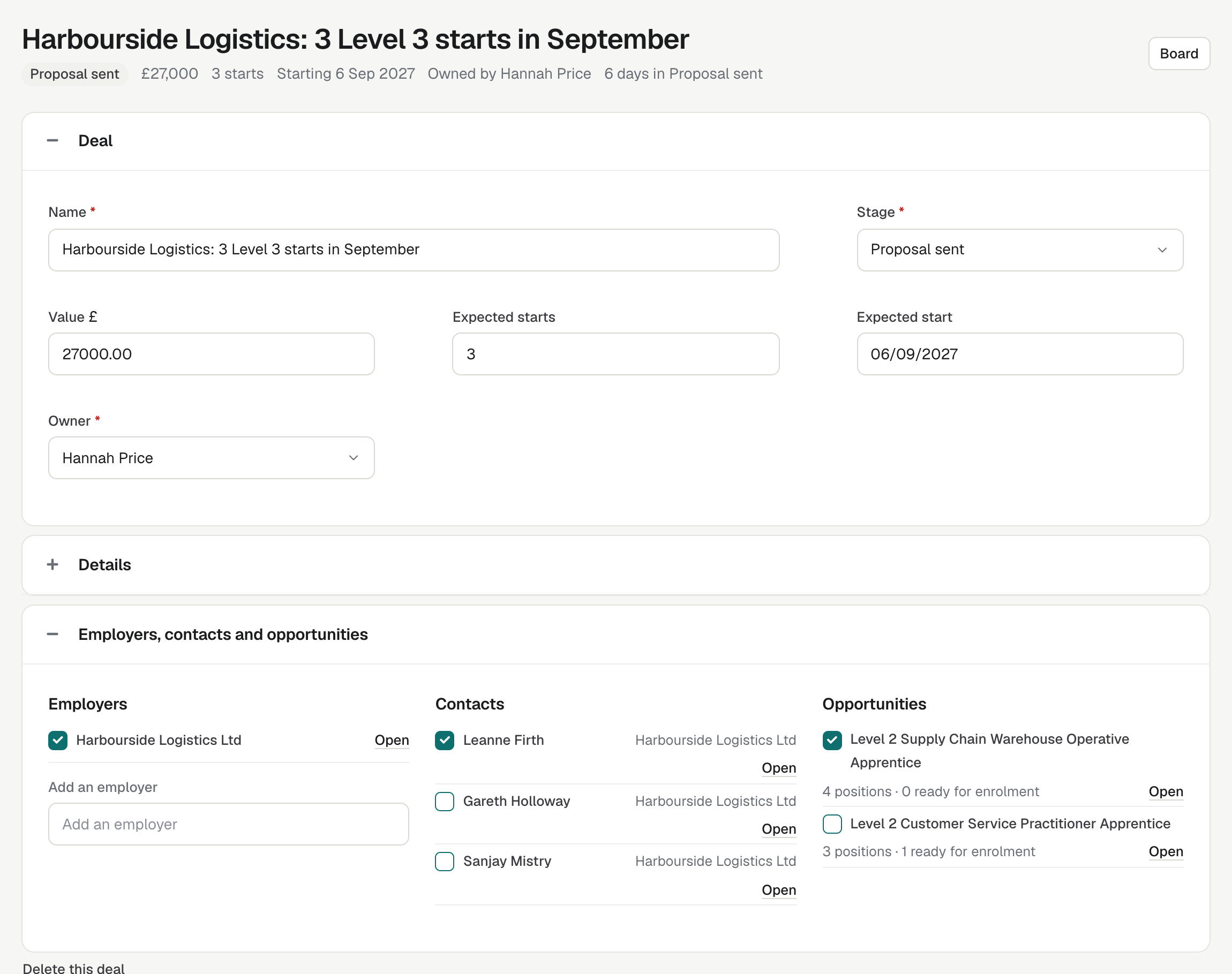
The top shows the deal's name, stage, value, expected starts, start date, owner and time in its stage. Board takes you back. enrola saves each change as you make it.
- Deal: Name, Stage, Value, Expected starts, Expected start and Owner.
- Details: a Description and, for a lost deal, the Lost reason. Below them, when the deal was created and by whom, last changed, entered its stage and closed.
- Employers, contacts and opportunities: tick boxes that save at once, each with Open to go to the record.
- Employers: search under Add an employer to add one. Untick an employer to remove it with its contacts and Opportunities. A deal keeps at least one employer.
- Contacts: the people at the deal's employers. Tick the ones involved.
- Opportunities: the employers' Opportunities that are not archived, with their positions and how many applicants are at Ready for enrolment. Tick the ones the deal covers.
- Activity: Note, Log call, Log email, Log meeting and Log action, and a timeline of the deal's notes and activities. See Log activities on a deal and see its history.
- History: when the deal was added, and each change of stage, owner and value.
Move a deal to another stage
- Drag the card: hold anywhere on the card and drop it on another stage. To move a deal to Lost, drop it there: the card stays put and its move menu opens, so you can type why it was lost. Then select Move. You can't drag on a phone.
- Use the card's move menu: select the arrows button in the card's corner, choose the stage under Move to, then select Move. For Lost, you can add why it was lost. Escape or a click elsewhere closes the menu.
- On the record: change the Stage in the Deal panel.
enrola confirms, for example "Acme: 3 Level 3 starts in September moved to Won." Won and Lost close a deal. Moving it back to an open stage reopens it and clears its lost reason.
If a colleague changed the deal after your board loaded, enrola leaves it where it is and tells you its current stage. A dragged card goes back to its column.
Delete a deal
Open the deal, select Delete this deal, then select Delete followed by the deal's name.
Warning. Deleting a deal removes it and its links. The Employers, Contacts and Opportunities themselves stay. You cannot undo this in enrola.
Good to know
- Deals are for your team only. Employers and applicants never see them.
- Employer, Contact and Opportunity records list their deals in a Deals panel. See See your deals as a list, and on records.
- If every employer on a deal is deleted, its card says No employer, and the record asks you to add one. If its owner is removed from enrola, the record asks you to choose another.
- Deal stages are separate from employer and contact workflow statuses.