Use the new Employer and Contact pages (early access)
Note. These pages are part of early access. Your organisation has them when an Admin or Team Owner turns on early access in Settings → Early access. See Try new features early with early access.
Without early access, an Employer record is one long column of panels. The new pages give each Employer and Contact a clear summary at the top and a quicker way to move around the record.
Turn the new pages on or off
You need to be an Admin or Team Owner. Early access is one switch for your whole organisation: it turns on these pages, views as tabs on your lists and the new text editor together.
- To turn the pages on, select Turn on early access in Settings → Early access. Your Employers and Contacts open in the new pages as they are. Nobody needs to re-enter anything.
- To turn them off, select Turn off early access on the same page. Everyone goes back to the pages they know the next time a page loads. The locations, head offices and learner links you saved are kept, and come back if you turn early access on again.
If the new pages cause a problem for your organisation, the enrola team can keep them off while the rest of early access stays on. Settings → Early access then shows them as Held back by the enrola team.
What the new pages show
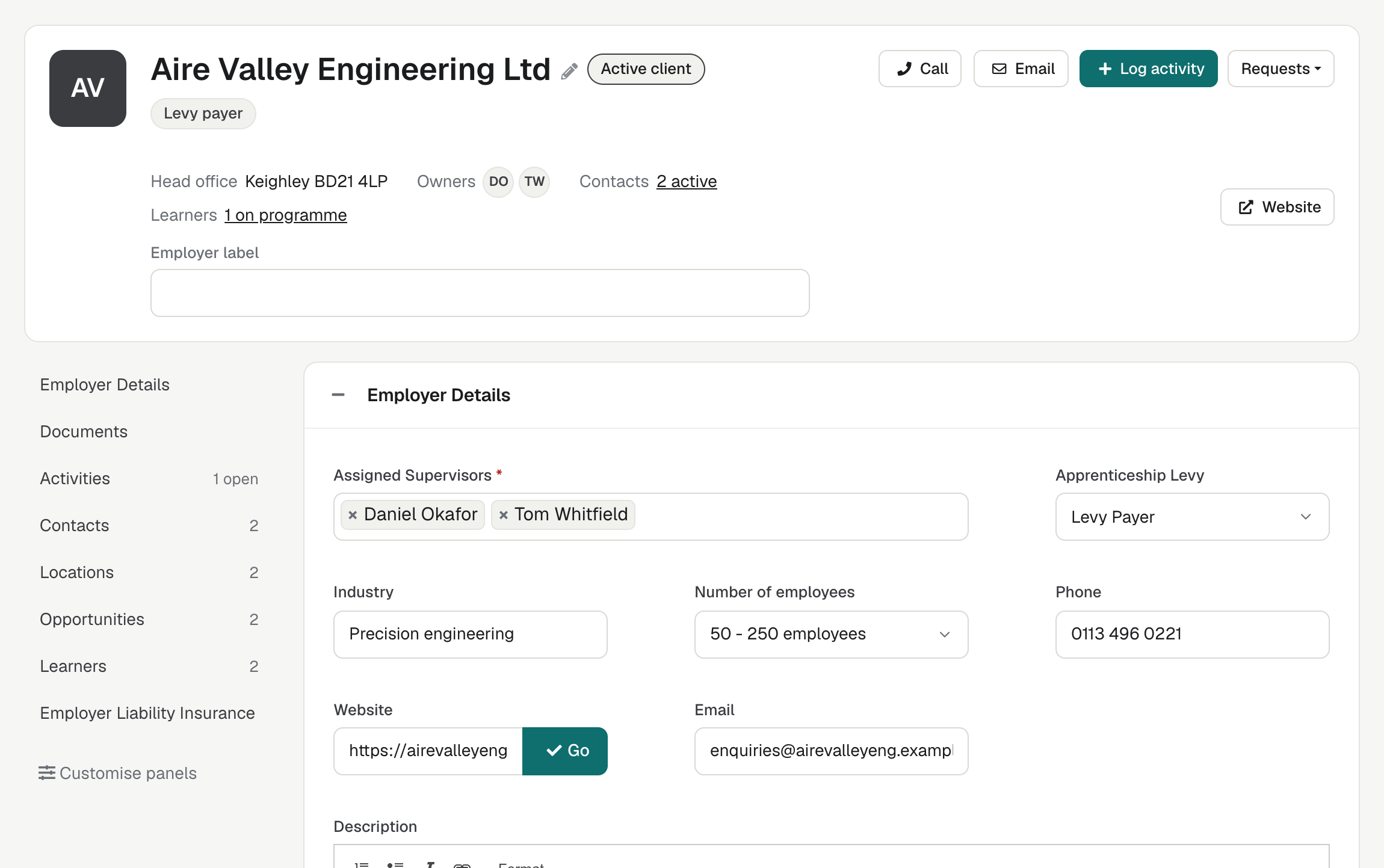
A summary at the top of each Employer
The top of the Employer record shows, at a glance:
- the logo, or the employer's initials, with its name, workflow status and levy status;
- Head office: the town and postcode from the employer's address;
- Owners: the initials of the people who look after the employer (its Assigned Supervisors);
- Contacts: how many active contacts it has, for example "3 active";
- Learners: how many of its learners are on programme, for example "4 on programme", once any learners are linked to it;
- its labels.
Select the name to rename the employer. Fields you have added to the top of the record show under the summary and save as you change them.
Beside the summary are buttons to act on the employer:
- Call, when the employer has a phone number;
- Email and Log activity, which open the form on the employer's timeline (see Record calls, emails, meetings and reminders as Activities);
- Requests, a menu with Request more info, Request ELI and Send feedback survey;
- Website, when the employer has one.
If the employer has no active contacts, a bar says Employer has no contacts yet, with Add contact, and the requests are greyed out. Read Only users see the summary without Email, Log activity or Requests, and can't rename the employer.
A contents list beside the panels
On a wide screen, a list down the side shows the record's panels in your order. Some show a count: active contacts, active locations, learners, Opportunities, and open activities, for example "2 open". Select an entry to jump to that panel. As you scroll, the list marks the panel you are reading. On a phone, the list becomes a strip under the summary that you scroll sideways.
Customise panels, under the list, takes the place of Edit page layout. It opens the same side panel to show, hide and reorder panels, and the fields stay editable while you do. New users in your organisation get the Activities timeline straight after Employer Details. Everyone else keeps the panel order they have.
Locations: a head office and other sites
A new Locations panel lists the places the employer works from: its Head office first, then its other sites, with inactive ones last. Each shows its Name, Address and whether it is Active or Inactive.
On the new page, Locations is where you keep the employer's address. Employer Details has no address fields or Find address.
- An employer that already has an address has a Head office made from it. The Head office's address is the employer's address: change one and the other follows.
- Add location opens a window for the site's Name, for example "Wakefield depot", and its Address, with the usual postcode lookup. Each name can be used once per employer.
- You choose the Head office. A new site is not the Head office unless you tick This is the Head office in the Add location window. Ticking it makes the new site the Head office in place of the current one.
- Edit changes a site's name or address.
- Make head office makes a site the Head office. Its address becomes the employer's address, and the summary's Head office follows.
- Make inactive and Make active retire a site or bring it back. The Head office can't be made inactive: make another site the Head office first.
- The Location filter on the Employers list also finds an employer by the postcodes of its active sites.
Users, Admins and Team Owners can change locations. Read Only users see the panel without the buttons.
More about locations:
- No location becomes the Head office by itself, not even an employer's first. Until you choose one, an employer can have sites but no Head office. An empty panel says "No locations yet. Use Add location, and tick This is the Head office for the employer's main site."
- When you edit the Head office, the window reminds you: "This is the Head office: its address is also the employer's address."
- An inactive location can't be made the Head office: make it active first.
- The API, imports and Request more info also set the employer's address. If an employer with no locations gets an address that way, enrola makes it the Head office.
Companies House: the registered address
On the new page, a Companies House lookup doesn't change Employer Details. Instead, the Companies House panel shows the company's registered address with Save as a location called Registered address. If the employer already has that location, the button is Update the Registered address location. The registered address is often not where the employer works, so it never becomes the Head office: choose that in Locations.
Learners: the employer's apprentices
A new Learners panel lists the Learners linked to the employer, newest first, with each one's Learner (name and ULN), Standard, Assessor and Status.
- Filter by All, On programme, Break in learning, Completed or Withdrawn, each with a count, and Not set when any learner has no status.
- It shows the first 10. Select Show all, for example "Show all 14", to see the rest.
- Select a learner's name to open their Learner record.
The panel is read only. A Learner is linked to an employer when you create it from an Application, or when you choose the employer in Employer record on the Learner's record.
Learners created before then, or imported, may name the employer without being linked to it. The panel then says, for example, "3 learners name this employer but aren't linked to it." Select Review to see them: learners with no employer record whose employer name matches this one (ignoring capitals and spaces). Tick the ones that belong, then select Link. Nothing is linked until you do. Users, Admins and Team Owners can link learners.
Record information
At the bottom of the Employer record, Record information shows when it was Created and last Updated, its enrola ID and its External ID.
A new Contact page
On a wide screen, the Contact record has three columns:
- Left: the contact's name, "job title at employer" (the employer is a link), an Active or Left pill, their workflow status and labels, then their other panels in your order.
- Middle: their timeline.
- Right: cards about the people and work around them, up to five items each:
- Employer, with its status;
- Other contacts: the employer's other active contacts;
- Live opportunities: the employer's posted Opportunities, with the ones this person is the Contact for first, marked Their contact;
- Upcoming activities: their open activities;
- Interviews they run: upcoming interviews with them as interviewer.
At the top are Call and Call mobile (when they have those numbers), Email, Log activity and Mark as left or Mark as active. Read Only users see only Call and Call mobile.
On smaller screens the sections stack: the summary, the timeline, the details, then the cards. Customise panels, under the left column, lets you choose and order the Contact panels for yourself. If you hide the timeline, the other panels take the middle.
On every Employer and Contact page
These changes are in enrola for everyone, with or without early access:
- One timeline. The Activities panel on Employer and Contact records is a timeline of notes, calls, meetings, emails, record changes and interviews. See Record calls, emails, meetings and reminders as Activities.
- Notes you can reply to. Note on the timeline writes a note your team can reply to, with @mentions of colleagues. See Write notes on Employers, Contacts and deals.
- No primary contact. Each email to an employer goes to a contact you choose as you send it. See Add and manage employer contacts.
- Contacts who leave. Mark as left and Mark as active keep a contact's history while dropping them from the lists you choose from.
- A contact per vacancy. Each Opportunity has its own Contact. See The Opportunity record.
- Opportunity addresses. Copy from employer location on an Opportunity's Location panel copies the address of one of the employer's locations, such as its Head office. See The Opportunity record.
- Saving. Each panel on Employer and Contact records shows whether your change has been saved. If a colleague changed the same field after you opened the page, enrola tells you instead of overwriting their change. See Find your way around an Employer record.
- Find company. You can find a company at Companies House by name, on the Employer record and when you add an employer. See Add an Employer.
- Simpler contact details. Contacts have no fax or address fields. See Add and manage employer contacts.
- Lists. The Contacts list has Edit columns and a search across name, email, job title and employer. The Employers list has new columns, and With selected... has Assign owner and, for contacts, Mark as left. With early access, your team's views also show as tabs on both lists. See Work with the Employers and Contacts lists.
- Learners linked to employers. Creating a Learner from an Application links it to the vacancy's employer, and the Learner record has an Employer record box. The new pages show these links in the Learners panel.
- Deals on Employer and Contact records, for organisations that use Deals. See See your deals as a list, and on records.
- Deleting. Only Admins and Team Owners can delete an Employer or a Contact. See Delete Employers and Contacts.
What stays the same
- Your data, custom fields, custom panels and panel order carry over to the new pages unchanged. Locations and Learners join your panels, after Contacts and Opportunities.
- Employer and Contact pages keep their web addresses, so bookmarks and links in emails still work.
- Request more info, Request ELI and the feedback survey work as they do without early access.